Switch on Learning (description)

At the Windsor-Essex Catholic District School Board, we are Switching on Learning by integrating Google’s powerful ecosystem into every classroom. This blog is a dedicated space for sharing the ideas, methodologies, and digital tools that transform the modern educational experience. Our Digital Toolkit We empower educators and students by leveraging a robust, collaborative environment: Google Workspace for Education: Driving seamless collaboration through Docs, Drive, and Classroom. The Power of AI: Utilizing Gemini and integrated AI features to personalize learning and spark creativity. Data-Driven Assessment: Using MarkBook to track student growth with precision and transparency. The Process of Learning: Leveraging Revision History to emphasize growth, iteration, and the visible journey of a student's work. From interactive Chrome tools to digital storytelling, we aren't just using tech—we’re using it to bridge gaps, foster global collaboration, and future-proof our students' skills.

Instructional Videos for New Features: Revision History

WECDSB | Revision History Updates
WECDSB

Revision History Updates

Short instructional videos for teachers

πŸ“Š Contributor Breakdown
  • Instant Clarity: See what percentage of a Doc each student wrote.
  • Total Effort: Tracks the entire writing process, not just the final word count.
  • Fair Grading: Identify exactly who contributed to group projects.
▶ WATCH VIDEO OVERVIEW
πŸ”— Share Replay
  • Easy Sharing: Securely share a writing replay with parents or admins.
  • No Accounts: Recipients watch at revisionhistory.com/replay without logging in.
  • Privacy First: No student data is stored on servers; the file stays with you.
▶ WATCH VIDEO OVERVIEW
🚩 Writing Pattern Flags
  • Smart Detection: Flags large text dumps or unusual writing ratios.
  • Context Tool: A signal to watch the replay and understand the process.
  • Insight: Designed to give you a fuller picture of student work habits.
▶ WATCH VIDEO OVERVIEW

Record audio, video, and screencasts directly in Google Classroom

 Big news for the "Stream": You no longer need three different browser extensions just to send a video message to your students. Google Classroom has officially launched integrated audio, video, and screencast recording.

πŸ“½️ Where you’ll see the "Record" button:

  • Private Comments: Give your typing fingers a break. Record a quick voice note or screencast to walk a student through a tough math problem or provide pronunciation tips.

  • Announcements: Start the week with a 30-second video to build rapport and set the tone.

  • Assignments: Instead of a wall of text, record your instructions. It’s a game-changer for accessibility and ensures nothing gets lost in translation.

  • Student Submissions: Students can now "show what they know" through video or audio, providing a lifeline for those who struggle with written output.

The Bottom Line: This isn't just a new button; it’s a way to make digital learning feel more human. It saves you time on grading and gives your students a clearer path to success.

More information here: https://workspaceupdates.googleblog.com/2026/01/record-screencasts-audio-video-classroom.html 


GEMINI Integration with NOTEBOOK LM

Notebook LM is powered by the Gemini AI Model.  Notebook acts as a walled garden, ensuring that any data you enter into it is processed accurately.  A new integration between Notebook LM and Gemini will allow you to add a Notebook from Notebook LM into a Gemini prompt.  

❗The WECDSB sanctions only the use of the board's version of GEMINI and NOTEBOOK LM and not the personal use version.


In Gemini you can click on the PLUS button and now add a NOTEBOOK LM file to be used along with other inputs such as Google Drive files, Code, Video, or other files.


Why would you want to add a Notebook LM Notebook to Gemini?  

Gemini and Notebook LM approach your prompt differently and are separate products.  This integration provides even more targeted power to the user.  

1. Drastic Reduction in "Hallucinations"

When you provide a specific file, you can instruct Gemini to answer only based on that source. This "grounding" ensures that the AI doesn't pull random facts from the internet, but instead sticks to the facts, figures, and nuances within your provided text.

2. Synthesis of Complex Research

NotebookLM is great for organizing notes, but Gemini is the master of creative synthesis. By bringing those files into Gemini, you can:

  • Cross-reference: Ask Gemini to compare your personal notes with real-time market trends or historical data from its own training.

  • Drafting: Turn your raw research snippets into polished essays, blog posts, or professional reports.

3. Advanced Multimodal Analysis

Gemini can "see" and "hear" in ways basic document readers can't. If your NotebookLM files include complex charts, handwritten notes, or diagrams, Gemini's multimodal capabilities allow it to:

4. Massive Context Window

Because you are using the Paid tier (Gemini 3 Flash), you have an extended conversation length. This means you can upload massive documents—entire books or technical manuals—and Gemini can maintain the "memory" of the beginning of the document while you discuss the end.


2025-2026 School Year Kickoff

 πŸ–Š️πŸ“–✏️πŸ“š New to Google Classroom


What’s changing

In 2023, we introduced a centralized view of Classroom analytics for teachers and education leaders. This analytics dashboard provides direct visibility into student performance and engagement in Google Classroom. Starting today, teachers can view this data via an “Analytics” tab on their class pages. 

In addition, teachers will be able to see relevant insights on the class analytics page that alert them on how students are progressing and where they may need additional support. Here are a few examples: 
  • 2 students haven't visited your class page in the last week 
  • 3 students' grades increased over 25% since last month
  • 1 student turned in over half their assignments late in the last monthclass analytics
Richer insights about student engagement with assignments will also be surfaced directly on the Classwork page. Specifically, teachers can see the number of students who haven’t opened Drive files attached to assignments in Classroom. They can then follow up by sending a quick reminder to the class or individual students through private comments. 
send a quick reminder to the class or individual students through private comments
This, along with our previously announced feature that displays the number of students who haven’t edited attachments, provides teachers with a more comprehensive view of how students are progressing on assignments and equips them with the tools to deliver timely reminders. 

Google announced numerous enhancements at ISTE this year. One particularly noteworthy addition that caught my attention was Quick Links in Google Classroom.

image.png
image.png


πŸ“†Google Booking Appointments

Following our recent announcement of the ability to share your Google Calendar appointment booking page directly in your email, we’re excited to introduce a new way to access all your booking pages directly in the Calendar sidebar. Plus, users who don’t have an appointment schedule yet will now have a pre-configured booking page. 

With this launch, users who haven’t set up an appointment schedule yet will see a pre-configured booking page entry in the Calendar sidebar, making scheduling one-on-one meetings with external users much easier. The pre-configured booking page is tailored to your working hours and will automatically update to prevent conflicts on your calendar.

image.png

πŸ’»  Google Meet 


Full screen for screen sharing


August 11, 2025, 11:02 am

What’s changing 

Starting today, the full screen action appears when viewing a presentation or sharing your screen. This option increases the size of the presentation by maximizing the Meet UI and reducing the size of meeting participants using sidebar view. 


Previous Announcements


2024 School Year Kickoff


Welcome back to another school year!!
Please see below for updates on Google Classroom. 

Providing student engagement signals for Google Drive file attachments in Google Classroom:


With this update, teachers will have easily accessible visibility into whether students have made progress on assignments with Drive attachments through pre-existing workflows in Classroom. This helps identify students who may need additional support and make more informed decisions about how to assist their students. 

Click here for more information

Creating Groups in Google Classroom

Teachers can create groups in Google Classroom, which is convenient for issuing work to a group of students rather than the entire class. Now, teachers can differentiate content across sub-sections of their class based on their students' needs. For example, teachers can create groups based on reading levels, and as their class adapts, they can edit group members or delete groups within their class. 
Student groups in the Classroom

Sharing Google Classroom Resources

Teachers can share materials like assignments, lessons, etc.; the recipient will import and adapt them in their Classroom. 

For more updates on your favourite Google Workspace tools. Please subscribe to the Google Blog https://workspaceupdates.googleblog.com/ and fill out the following.


Google Workspace Updates


 Stay up to date with Google Workspace Updates! Click on the icon to visit the subject-specific blog. 


New to Google Classroom - Practice Sets!

 New to Google Classroom - Practice Sets!


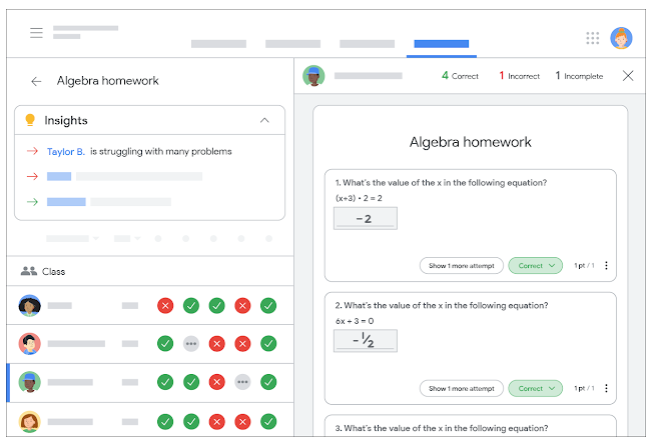
Google has recently announced a new and powerful tool that will be coming to Google Classroom, called 'Practice Sets'.  Practice sets can be given to students in the same fashion that homework is assigned.   Practice sets can be created using new or existing material.

The power behind practice sets is twofold, for the student's and the teacher's experiences.  Once the practice set has been created, Google's powerful artificial intelligence tools will review the practice set and find useful videos and concept cards that can help the student better understand the concepts being presented.  Upon the teacher's approval, these videos and concept cards can be embedded into the practice setting.  The 'auto grading' feature within practice sets will let the students know when they are correct and will provide the teacher-approved videos and concept cards where appropriate.  This will provide immediate feedback for the students as they are working through the practice set.


From the teacher's experience, practice sets provide an enhanced grading view which will show the class's performance and results of every attempt made by the students.  Furthermore, the AI tools will provide insights using classwide trends to inform teachers on what concepts the class or individual students may be struggling with.


5 minute assessment reviews: Triangulation


Hello again,
Today we are going to begin looking at how to triangulate your assessment, both by including observation, conversation and product in judging your students' mastery and by using three points of data guide your assessment.

The first video discusses using observation, conversation and product to assess our students.


The second video begins to look at using three points of data collection (that is three assessments) to both guide your teaching and also make your assessment more valid.  This video is assuming that the 3 points of data are all equally weighted an that the course, or the unit is scaffolded and one concept is built on another.  In a subject like English (my area), the assumption is that the entire course builds upon earlier concepts and understandings.  In a subject like science or math, each unit of study might build upon earlier concepts in the course or just the unit and be scaffolded in that way.


I hope that these ideas can open a conversation about how teachers use triangulation to make their assessments fair and reliable.

The next video will dig deeper into looking at most recent and most consistent marks and I will do an English teacher explanation of measure of central tendency.

Let's keep the conversation going.


5 Minute Assessment Reviews: Damian Cooper on Triangulation & Curriculum Expectations


This begins a short series of 5 minute (or less) assessment reviews.  Like many of you, I hear terms in education and know what they generally mean but find myself needing to do a quick google search to get the specifics if I want to think more deeply about the topic.

Now that I am focusing on assessment as your faithful Secondary Assessment Teacher, I thought I would share a few deeper dives into some of the terms and concepts we teachers talk about and are guided by every day .

The first in this series is an overview that is presented by Damian Cooper.  It will give you a quick, 5 minute overview of what triangulation is and how that fits in with our own overall and specific curriculum expectations. Cooper suggests that using technology is the way to collect triangulated evidence and we will explore this more later in the series.

In the next post, I will look more specifically at triangulation and what that means in a short video.

If you would like to learn more about a specific aspect of assessment, evaluation or reporting and all the terms, ideas and examples therein, please email me and suggest a post.  

Now, on to Damian Cooper:


Assessment v. AI

Will the struggle between valid assessment of students and Artificial Intelligence Chatbot generated work become the new Battle Royale in teaching?  

The P.D. session on February 17, 2023 on ChatGPT and other AI applications gave us a glimpse of what is to come.  Some teachers expressed concern that applications like ChatGPT might make plagiarism and cheating harder to detect.  So, let's take a look at some ways that we can make our assessments and evaluations of students reliable, valid and rich (and more plagiarism resistant).


You can download a copy of the infographic here.  Feel free to print it or share it.

Don't forget that Growing Success and Learning for All still apply and can help guide you.

Combatting "Fake News": Helping Students Distinguish Between Fact and Fiction

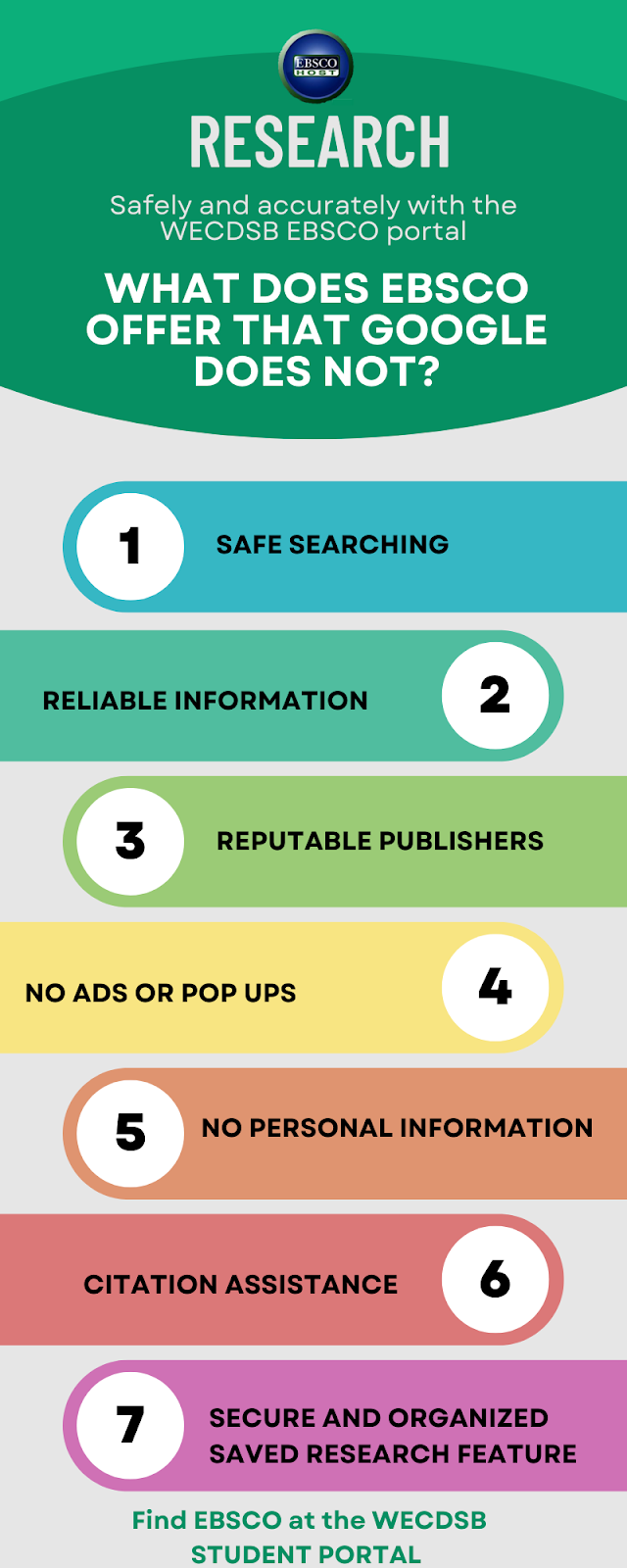
There is so much information in the world that we must teach students to distinguish what is true information and what is false information.  EBSCO has a useful infographic to help you teach students to use critical thinking when choosing what to believe.

There is a link below the image to a .pdf that can be shared with students.


EBSCOhost for English Teachers, Language Arts Teachers, Literacy Teachers and Readers


Do you teach Literacy, English, Reading or Language Arts?  You you have children who are in school?  EBSCOhost has a number of databases that are perfect for Subject English or ELA students and teachers.  

The infographic below provides easy reference to the EBSCOhost databases available through the Student and Teacher portals at www.wecdsb.on.ca.

As always, there is a link below the infographic to a .pdf you can share or post in your classrooms.

Exploring Canadian Points of View (EBSCOhost database)


Looking for a way to develop critical thinking?  Looking to explore issues in Canadian news?  Looking to debate?  Canadian Points of View, a database available for free through EBSCO host, examines both sides of a variety of issues through a Canadian lens.  The video below will take you through the database in under 4 minutes and hopefully offer some inspiration for your teaching.


Google Meet Reactions

 Google Meet Reactions


Staff at the WECDSB will now have the option to use Google Reactions during a Google Meet.  This is a quick and easy way to convey reactions from a large number of participants.  For more information, visit:

Our Continuity of Education Site


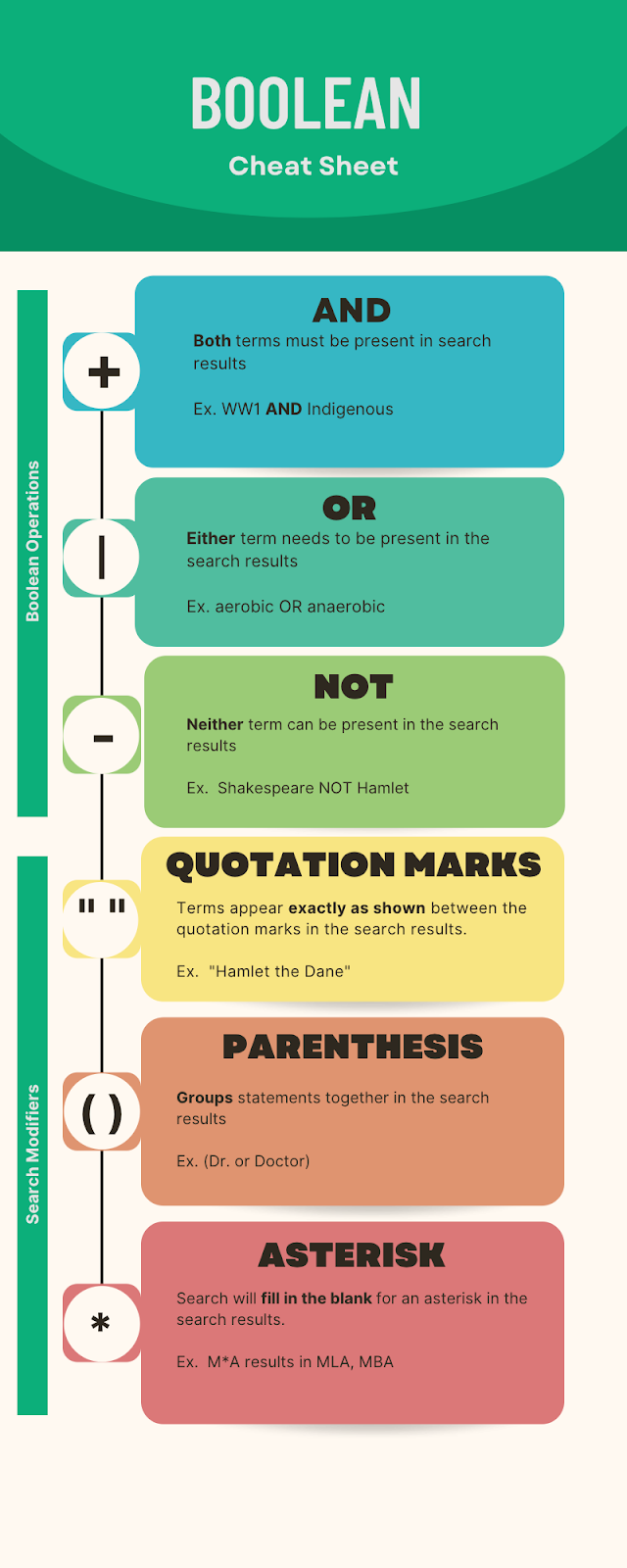
Using Boolean Operations and Search Modifiers for better research with EBSCOhost

 Boolean operators and search modifiers allow students to narrow their searches quickly.  Not only do these skills return better search results, they also save time so students are not sorting through thousands of results.  The cheat sheet below is also attached and you are free to post it in your google classrooms, print them for students or post in your classrooms.


Homework and Project Support for Elementary Students using EBSCOhost


EBSCOhost offers databases to help with homework and projects for Elementary students

EBSCO offers many resources for geared to Elementary school learners.  The infographic below describes the databases that might be useful for your Elementary students and parents.  A copy of the infographic is also linked below so you can share it with students and their parents or post it in your classrooms.

Students can access EBSCO through the student portal at www.wecdsb.on.ca

Exploring EBSCOhost databases

EBSCOhost databases

EBSCOhost offers free access to a number of databases.  Some are targeted at all users, some secondary and some elementary students.  You can assign a specific database to your students to use based on their age and grade level and/or based on the purpose for the database.  

Take a look at the infographic below for a description of some available databases and their uses.  There is also a link below so you can share the infographic with your students or post it in your classrooms.

Exploring EBSCOhost databases infographic .pdf

Here are a few quick videos about how to access EBSCOhost.

Accessing EBSCO as a student


Accessing EBSCO as a teacher


(Re) Introducing EBSCOhost


Are your students doing research for their culminating activities?

Are you doing some research for your lessons?


EBSCOhost is a search tool that offers safe, verified and curated databases for student

and teacher use.  


Students can access EBSCOhost from the student portal at www.wecdsb.on.ca

Teachers can access EBSCOhost from the staff portal>For Teachers at www.wecdsb.on.ca 


Look for more about the uses and benefits of EBSCOhost over the next few weeks.

New Google Drive Feature - Cut, Copy and Paste thorugh keyboard shortcuts


New Google Drive Feature - Cut, Copy and Paste through keyboard shortcuts


Google Drive has implemented a new feature that allows you to cut, copy and paste using keyboard shortcuts.  This makes it much easier to organize your drive withouth having to use the menus available thorugh right clicking on the file.  To use these new features, simply navigate to the file in your google drive and click on it.  Use the shortcut key cobination to cut, copy or paste the file.

NOTE:  

When you use the copy function, the new file will be called "Copy of " plus the orginal file name
When you use the cut function, the file will be removed from the original location.

CUT: Press CTRL + X (PC) or CMD + X (MAC)
COPY: Press CTRL + C (PC) or CMD + C (MAC)
PASTE: Press CTRL + V (PC) or CMD + V (MAC)


Instructional Videos for New Features: Revision History

WECDSB | Revision History Updates ↑ WECDSB Revision History Updates Short ins...