Switch on Learning (description)

At the Windsor-Essex Catholic District School Board, we are Switching on Learning by integrating Google’s powerful ecosystem into every classroom. This blog is a dedicated space for sharing the ideas, methodologies, and digital tools that transform the modern educational experience. Our Digital Toolkit We empower educators and students by leveraging a robust, collaborative environment: Google Workspace for Education: Driving seamless collaboration through Docs, Drive, and Classroom. The Power of AI: Utilizing Gemini and integrated AI features to personalize learning and spark creativity. Data-Driven Assessment: Using MarkBook to track student growth with precision and transparency. The Process of Learning: Leveraging Revision History to emphasize growth, iteration, and the visible journey of a student's work. From interactive Chrome tools to digital storytelling, we aren't just using tech—we’re using it to bridge gaps, foster global collaboration, and future-proof our students' skills.
Showing posts with label Educational Tools. Show all posts

GEMINI Integration with NOTEBOOK LM

Notebook LM is powered by the Gemini AI Model.  Notebook acts as a walled garden, ensuring that any data you enter into it is processed accurately.  A new integration between Notebook LM and Gemini will allow you to add a Notebook from Notebook LM into a Gemini prompt.  

❗The WECDSB sanctions only the use of the board's version of GEMINI and NOTEBOOK LM and not the personal use version.


In Gemini you can click on the PLUS button and now add a NOTEBOOK LM file to be used along with other inputs such as Google Drive files, Code, Video, or other files.


Why would you want to add a Notebook LM Notebook to Gemini?  

Gemini and Notebook LM approach your prompt differently and are separate products.  This integration provides even more targeted power to the user.  

1. Drastic Reduction in "Hallucinations"

When you provide a specific file, you can instruct Gemini to answer only based on that source. This "grounding" ensures that the AI doesn't pull random facts from the internet, but instead sticks to the facts, figures, and nuances within your provided text.

2. Synthesis of Complex Research

NotebookLM is great for organizing notes, but Gemini is the master of creative synthesis. By bringing those files into Gemini, you can:

  • Cross-reference: Ask Gemini to compare your personal notes with real-time market trends or historical data from its own training.

  • Drafting: Turn your raw research snippets into polished essays, blog posts, or professional reports.

3. Advanced Multimodal Analysis

Gemini can "see" and "hear" in ways basic document readers can't. If your NotebookLM files include complex charts, handwritten notes, or diagrams, Gemini's multimodal capabilities allow it to:

4. Massive Context Window

Because you are using the Paid tier (Gemini 3 Flash), you have an extended conversation length. This means you can upload massive documents—entire books or technical manuals—and Gemini can maintain the "memory" of the beginning of the document while you discuss the end.


Google Workspace Updates


 Stay up to date with Google Workspace Updates! Click on the icon to visit the subject-specific blog. 


New to Google Classroom - Practice Sets!

 New to Google Classroom - Practice Sets!


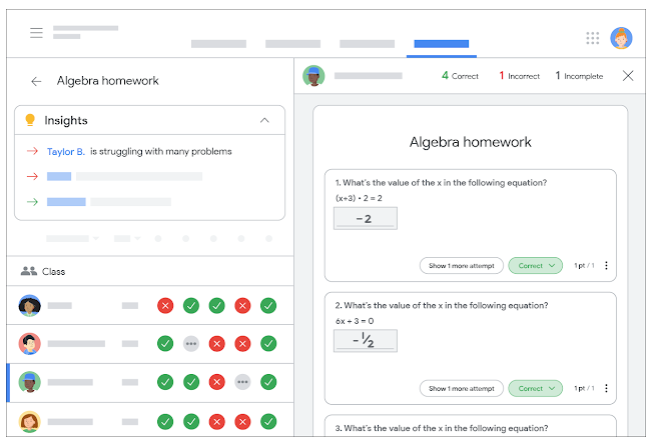
Google has recently announced a new and powerful tool that will be coming to Google Classroom, called 'Practice Sets'.  Practice sets can be given to students in the same fashion that homework is assigned.   Practice sets can be created using new or existing material.

The power behind practice sets is twofold, for the student's and the teacher's experiences.  Once the practice set has been created, Google's powerful artificial intelligence tools will review the practice set and find useful videos and concept cards that can help the student better understand the concepts being presented.  Upon the teacher's approval, these videos and concept cards can be embedded into the practice setting.  The 'auto grading' feature within practice sets will let the students know when they are correct and will provide the teacher-approved videos and concept cards where appropriate.  This will provide immediate feedback for the students as they are working through the practice set.


From the teacher's experience, practice sets provide an enhanced grading view which will show the class's performance and results of every attempt made by the students.  Furthermore, the AI tools will provide insights using classwide trends to inform teachers on what concepts the class or individual students may be struggling with.


EBSCOhost for English Teachers, Language Arts Teachers, Literacy Teachers and Readers


Do you teach Literacy, English, Reading or Language Arts?  You you have children who are in school?  EBSCOhost has a number of databases that are perfect for Subject English or ELA students and teachers.  

The infographic below provides easy reference to the EBSCOhost databases available through the Student and Teacher portals at www.wecdsb.on.ca.

As always, there is a link below the infographic to a .pdf you can share or post in your classrooms.

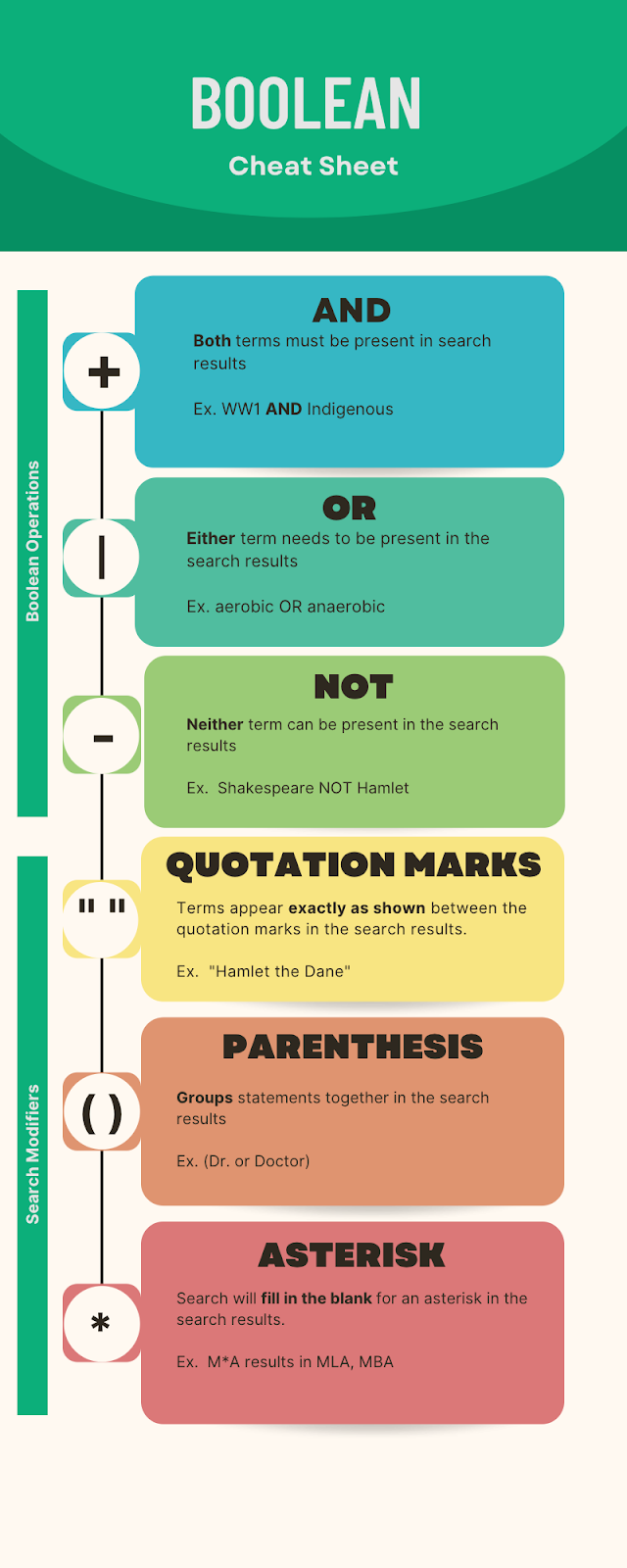
Using Boolean Operations and Search Modifiers for better research with EBSCOhost

 Boolean operators and search modifiers allow students to narrow their searches quickly.  Not only do these skills return better search results, they also save time so students are not sorting through thousands of results.  The cheat sheet below is also attached and you are free to post it in your google classrooms, print them for students or post in your classrooms.


Homework and Project Support for Elementary Students using EBSCOhost


EBSCOhost offers databases to help with homework and projects for Elementary students

EBSCO offers many resources for geared to Elementary school learners.  The infographic below describes the databases that might be useful for your Elementary students and parents.  A copy of the infographic is also linked below so you can share it with students and their parents or post it in your classrooms.

Students can access EBSCO through the student portal at www.wecdsb.on.ca. 

Exploring EBSCOhost databases

EBSCOhost databases

EBSCOhost offers free access to a number of databases.  Some are targeted at all users, some secondary and some elementary students.  You can assign a specific database to your students to use based on their age and grade level and/or based on the purpose for the database.  

Take a look at the infographic below for a description of some available databases and their uses.  There is also a link below so you can share the infographic with your students or post it in your classrooms.

Exploring EBSCOhost databases infographic .pdf

Here are a few quick videos about how to access EBSCOhost.

Accessing EBSCO as a student


Accessing EBSCO as a teacher


(Re) Introducing EBSCOhost


Are your students doing research for their culminating activities?

Are you doing some research for your lessons?


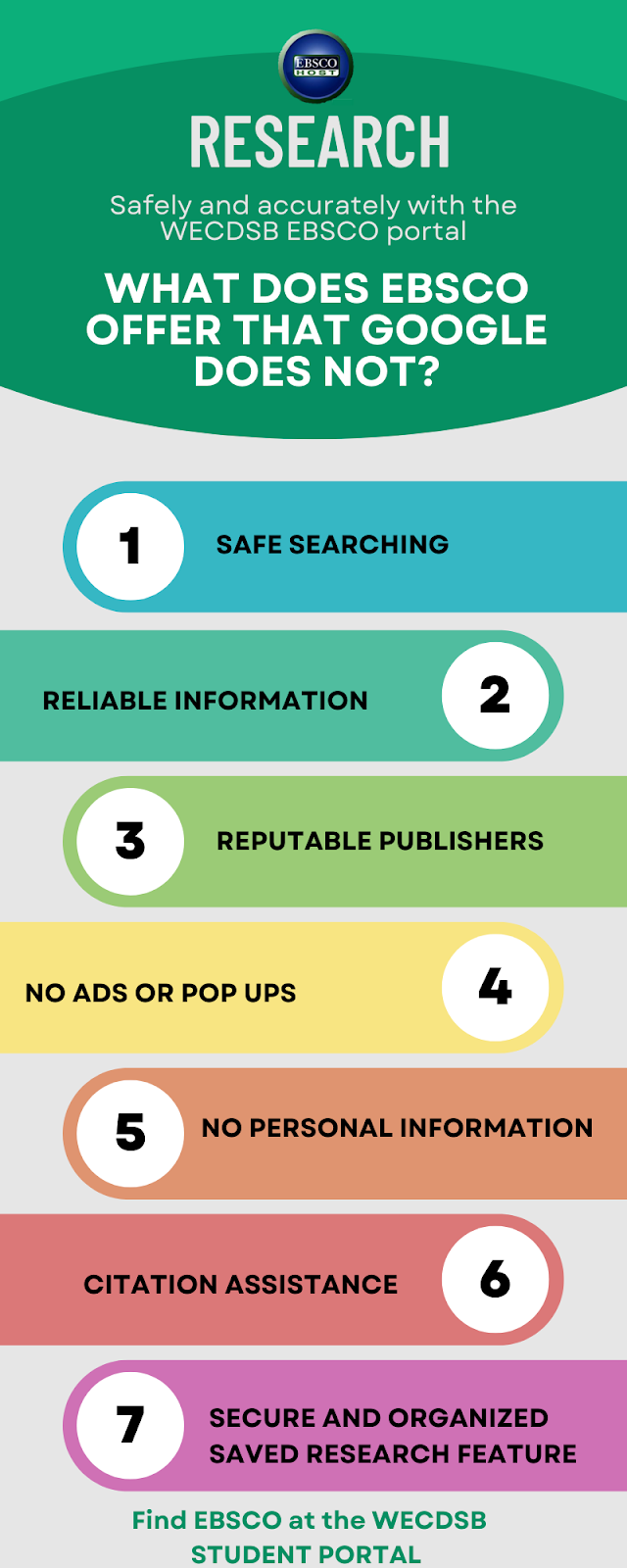
EBSCOhost is a search tool that offers safe, verified and curated databases for student

and teacher use.  


Students can access EBSCOhost from the student portal at www.wecdsb.on.ca

Teachers can access EBSCOhost from the staff portal>For Teachers at www.wecdsb.on.ca 


Look for more about the uses and benefits of EBSCOhost over the next few weeks.

New Google Meet Feature - Meets Ends After Five Minutes if Only One Participant


New Google Meet Feature - Meets Ends After Five Minutes if Only One Participant


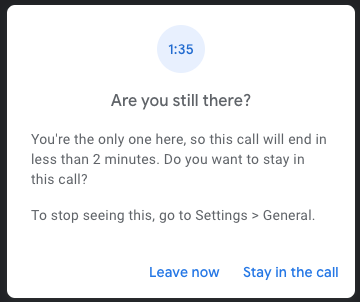
A new feature of Google Meet has been rolled out.  With this new feature, if you are the only participant in the Meet for a period of five minutes, you will get a warning.  In this warning you will be able to choose to leave the Meet or stay in the call.  If you do not make a selection within 2 minutes, the Meet will automatically end.   


If you do not want this feature enabled you can disable it in your Google Meet settings. 


To do this:


  1.  Click on the “More Options” button on the bottom of your screen.  This is the button with three vertical dots that is next to the “Hang Up” button.


  1. Select “Settings”


  1. Click on “General” and then turn the toggle off for “Leave empty calls”

Google Classroom Update - Post to multiple Classrooms


Google Classroom Update - Post to multiple Classrooms

An exciting and long awaited updated to Google Classroom is now available.  You now have the ability to post stream announcments, assignments, quizzes, questions and material to multiple classrooms. 

When you are cretaing an item you will notice there are now checkboxes availble for you to select the classrooms you wish to post to.

It is important to keep in mind that when you post to muliple classrooms:
  • You can no longer select to post to individual students.  The item will be visible to all students in each classroom that you select
  • If you are using topics, the item will post to the same topic in every classroom that is selected.


New Google Docs Pageless Format


NEW!  Google Docs Pageless Format


           In the latest Google Workspace update, Google has introduced the 'pageless' format in Google Docs.  A pageless format means that your document will not have any pagebreaks, which allows for more flexibility in the creation of your document. This is a great option to use if you know that your doucment will be used for digital purposes only.

When your document is in the "pageless" format, any images or charts that you insert will now have scroll bars to ensure that it fits onto the document
.


Here is how you change your document settings to make it pageless.

1.  From the top menu, click on File and then Page Setup

2. You will now see an option to select a Pageless format

3.  You may also change the background color and select if you want the "pageless" mode to be your default, which means that any new documents created will be in the "pageless" format.

Once you are ready, press "Ok".


More information on the new "pageless" Google Docs format can be found here.


Google Workspace Updates - Originality Reports and Google Docs Watermarks


NEW!!  Google Orginality Reports Update

    
    Google Originality Reports is a tool available through the Google Classroom.  This tool allows teachers and students to check for plagiarism on student work.  Previously, this tool only worked with Google Docs, however, in the latest Google Workspace update, this tool will now also work with Google Slides.  

Please see this document for more information on Google Originaliity Reports.


Watermarks in Google Docs

    
    A watermark is an image that is superimposed behind the text of your document.  A watermark can be used to identify the type of document .  For example, you can use a watermark to identify a document as a "draft" or "final" version.  

With the latest Google update, you can now insert text watermarks as well as images.


To add a watermark, click on Insert--> Watermark from the top menu.   

You can choose to insert an image or text watermark by clicking on the tabs.

To insert an image watermark, simply click on the "select image" button to insert an image from your Google Drive or the web.  You can also adjust the scale here. 

For text watermarks, enter the text and then select your desired settings including font, size, transparency and direction (horizontal or diagonal) 

The watermark can be changed later by clicking once again on Insert--> Watermark and selecting a new image.  If you want to remove the watermark, you can click on the "Remove Watermark" text at the bottom of the Watermark window. 


Google Slides - Students cannot insert youtube videos


Due to recent changes to Google user accounts who are under 18 years of age, students can no longer embed youtube videos into Google Slides presentations.  Google is aware of this issue, however, has not comitted to a date when this will be fixed.  In the interim, here is a workaround for students to insert videos into a Google Slides presentation.

1.  Get an image of the youtube video using screen capturing tool.

2.  Insert that image into the Slide show. 

3.  While the image is selected, click in "Insert --> Link".  Use the URL from the Youtube video.

Althtough the video will not play within the Google Slides presentation, it will have a look that is close.  The video can then be opened in a new tab.


New Google Meet Host Controls


New Google Meet Host Controls


Google Meet has launched some new host controls.  You can now change the settings on your meet so that participants cannot turn on their microphone or their video.  Once these settings are turned off, your participants will not be able to un-mute themselves or turn on their camera.  

NOTE:  This setting applies to ALL Meet participants.  At this time, you cannot turn off this setting for individual participants.

To access this setting, click on the host control icon. 

You will see the new settings under "Let Everyone"


New and Upcoming Updates to Google Classroom

The following updates are already live in Google Classroom.  In the second section of this document you will find upcoming updates.


  1.  Google Meet Link


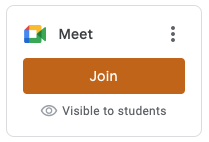
The Google Meet link is no longer posted in the banner of your Classroom.  You will now see a separate box on the top left of your screen with the Meet data.

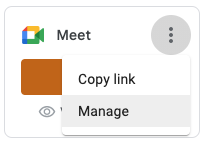
If you click on the three dots, and then click “Manage”


You can now edit your settings here, (rather than using the settings wheel)


To reset the Meet link, click on the drop down arrow beside the Meet link.  You can also make the link visible/invisible to students with the toggle switch.


  1. Co-Teachers are now automatically co-hosts in Google Meet


Google Meet now has the ability to add co-hosts to your Meet.  When you are in the meet, you can do this by clicking on the three dots next to a participants name and selecting “Add as co-host”


If you have a co-teachers in your Classroom, they will automatically be a host of the Meet when they join.


Upcoming Changes to Google Classroom (coming later this year)


  1. Embedded Apps


A number of apps including Kahoot, EdPuzzle and Newsela will be embedded right into the Google Classroom. This means that when you post a link to one of these applications, the app will open right in the Classroom and not on a new page.   As well, students will no longer need to login to the application, thus simplifying the process.  


  1. Student Engagement


A very exciting change that I am sure all educators will appreciate is the student engagement update.  With this update, teachers in the Google Classroom will be able to see data such as which students submitted assignments or commented on a post on a particular day. This will be a fantastic way to see how students are interacting with the Google Classroom!


  1. Scheduling Assignments to Multiple Classrooms


Coming later this year, teachers will be able to post the same assignment to multiple Classrooms.  You will also be able to assign separate due dates for each Classroom.  This will be a great time saver for teachers who use multiple Classrooms!


  1. Students submitting better pictures of work


A big frustration for teachers is receiving multiple files for one assignment or when students submit work that is horizontal or upside down!  With this update coming up students will be able to rotate  and crop their work after a picture is taken and merge multiple photos into one document.  


What's New in Tech


Co-Hosts


The host of the Google Meet can now add up to 25 co-hosts to a Google Meet.  The co-host will have all the functionality of the host including muting and removing participants as well as creating breakout rooms and controlling the additional activities including polls and Q and A.  Any recordings or attendance files will be sent to the main host.


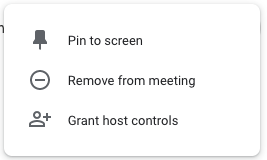
To designate a co-host, click on the three dots beside their name in the people tab of your Google Meet.  Select “Grant Host Controls”


Unpin your presentation while presenting


When you are presenting in Google Meet, your presentation takes up most of the screen.  This means that you cannot see your whole class.  Now, you can ‘unpin’ your presentation.  Your presentation box will then be the same size as the rest of your participants in the Meet, and you will be able to see your whole class while you are presenting.


To unpin, hover your mouse over your presentation in Google Meet.  Then click the unpin button.


Moving between tabs

When you are presenting a tab in Google Meet, you can now easily present a different tab.  You can do this by clicking on the “Share this tab instead” which will be at the top of your screen. 

As well, if you are presenting a tab and wish to quickly return to the Google Meet tab, you can select the “View tab: meet.google.com” button. 


    Google Forms


Google forms now have an auto-save feature.  This means that when logged in to a board account, the user can return back to the form and anything that was previously filled out will be saved.  This will give you and your students peace of mind when using Google Forms for assessment.  Prior to this feature, all work would be lost if there was a disruption in the internet connection or the student navigated away from the page. 


Any information that is filled on the form will be saved for 30 days, or until the form is submitted.  An overview of this feature can be viewed in this video.


           Google “Rooms” will be Google “Spaces”


Google “Rooms” which is available through Google mail or through Google chat, will soon be called Google “Spaces”.  Spaces are a great way to communicate with your colleagues.  Spaces is a great way to collaborate with teams as it allows you to send messages, assign tasks, share files, and have Google Meets.  


You can easily create a Google Space in your Gmail window.  On the bottom left side of your screen, simply click the + sign beside “Spaces”.  Then you can add the individuals who will be a part of your space. 


Simply click the “Files” or “Tasks” tab to add files or assign tasks.


Tasks can be assigned to the entire “Space” or it can be assigned individually.  Due dates can also be assigned to tasks.  


By clicking on the “Files” tab, you can choose to add files to share with your group.  As well, any files that are shared in the chat tab will be listed on this tab.  A great way to organize files for the space!


Google Contacts


Google contacts can be accessed through the side panel in your Google Mail.  Now, when you search for a contact, you will get some very useful information regarding this contact.  You can see a list of past email correspondence with that contact.  As well, you can quickly create a calendar event, a Google Meet, a chat message or an email to that contact using the icons shown.


Google Classroom


Google Classroom has the ability to schedule announcements, material and assignment posts as well as other items.  Since you should not be posting any material in your ‘off weeks’, the ability to schedule these items can help you with your planning and organization.


When you are creating the item, simply click on the drop down arrow beside the ‘Assign’ , ‘Post’’ or “Ask” button.

Then select “Schedule” and select the appropriate date/time.  The item that you just created will not be visible for the students until that date/time.  


Instructional Videos for New Features: Revision History

WECDSB | Revision History Updates ↑ WECDSB Revision History Updates Short ins...