At the Windsor-Essex Catholic District School Board, we are Switching on Learning by integrating Google’s powerful ecosystem into every classroom. This blog is a dedicated space for sharing the ideas, methodologies, and digital tools that transform the modern educational experience.
Our Digital Toolkit
We empower educators and students by leveraging a robust, collaborative environment:
Google Workspace for Education: Driving seamless collaboration through Docs, Drive, and Classroom.
The Power of AI: Utilizing Gemini and integrated AI features to personalize learning and spark creativity.
Data-Driven Assessment: Using MarkBook to track student growth with precision and transparency.
The Process of Learning: Leveraging Revision History to emphasize growth, iteration, and the visible journey of a student's work.
From interactive Chrome tools to digital storytelling, we aren't just using tech—we’re using it to bridge gaps, foster global collaboration, and future-proof our students' skills.
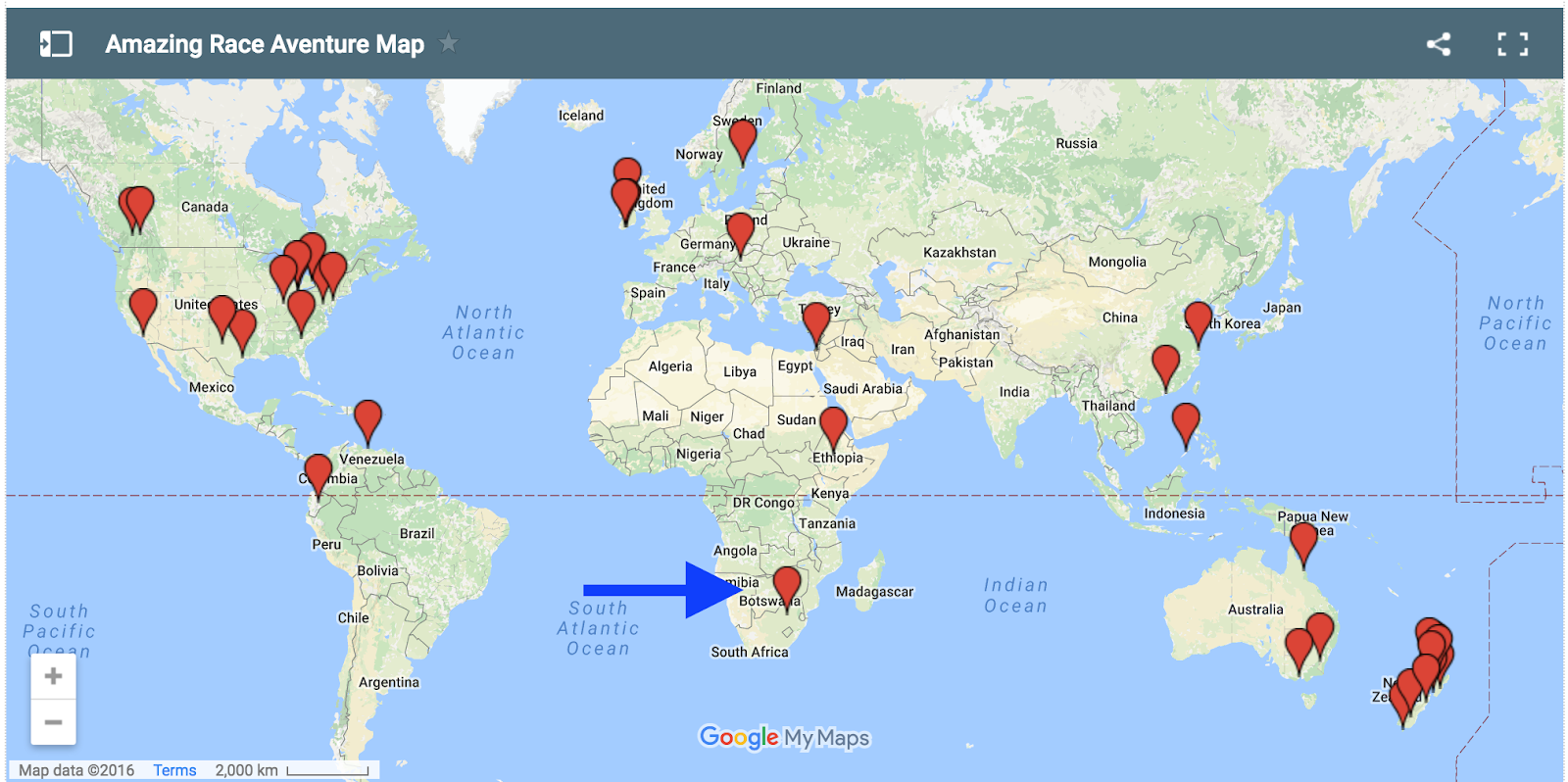
Take your students on a global adventure and visit pit stops created by teachers and students across the globe.
There are currently 40 pit stops featuring 16 countries with additional pit stops added daily.
How do you participate?
Click bit.ly/GSGPamazingrace to visit the Amazing Race Website. Click on a place holder of your choice:
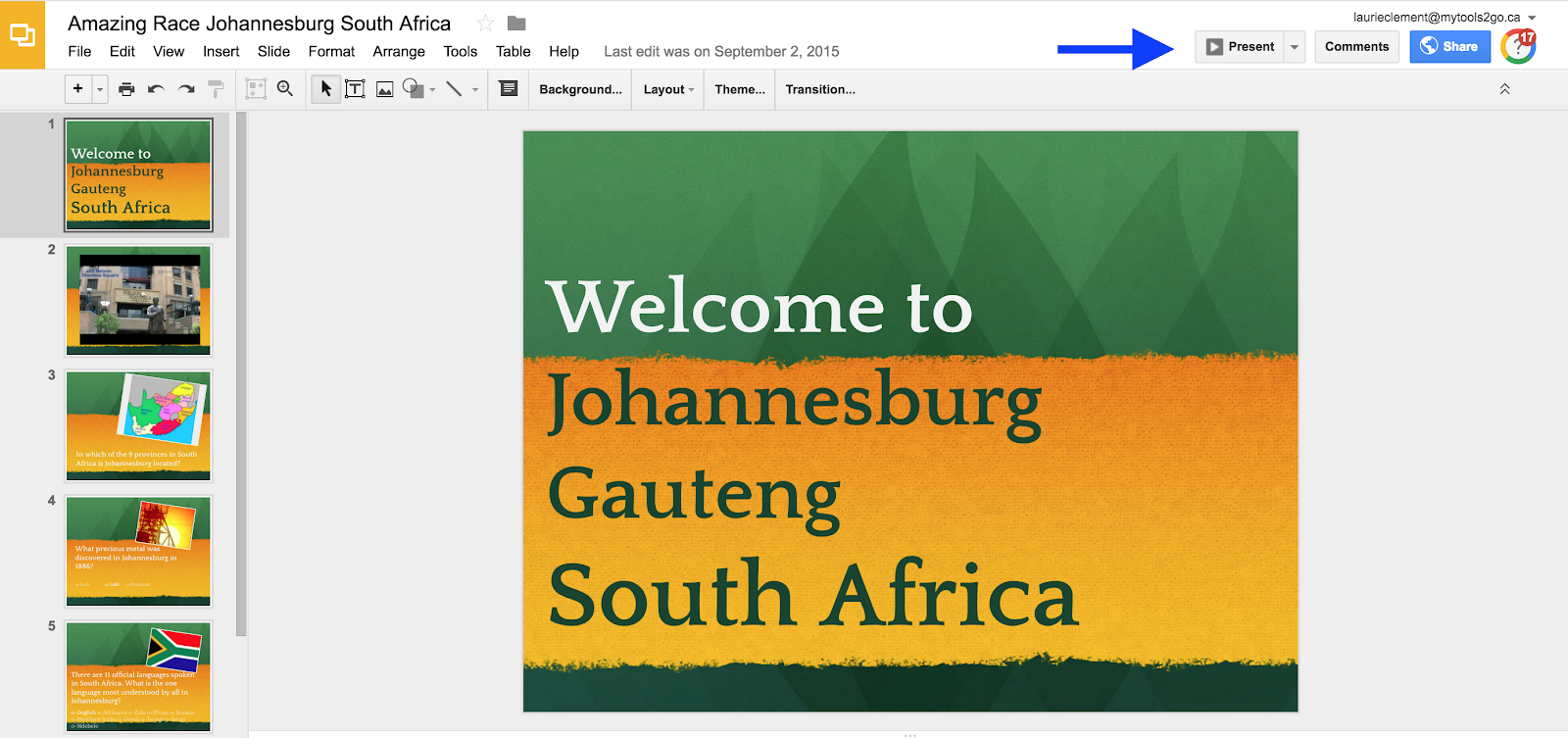
Once you click the link you will be directed to a Google Slide Show created by students and/or teachers in each respective location. I recommend you select “Present” view for the best visual appearance.
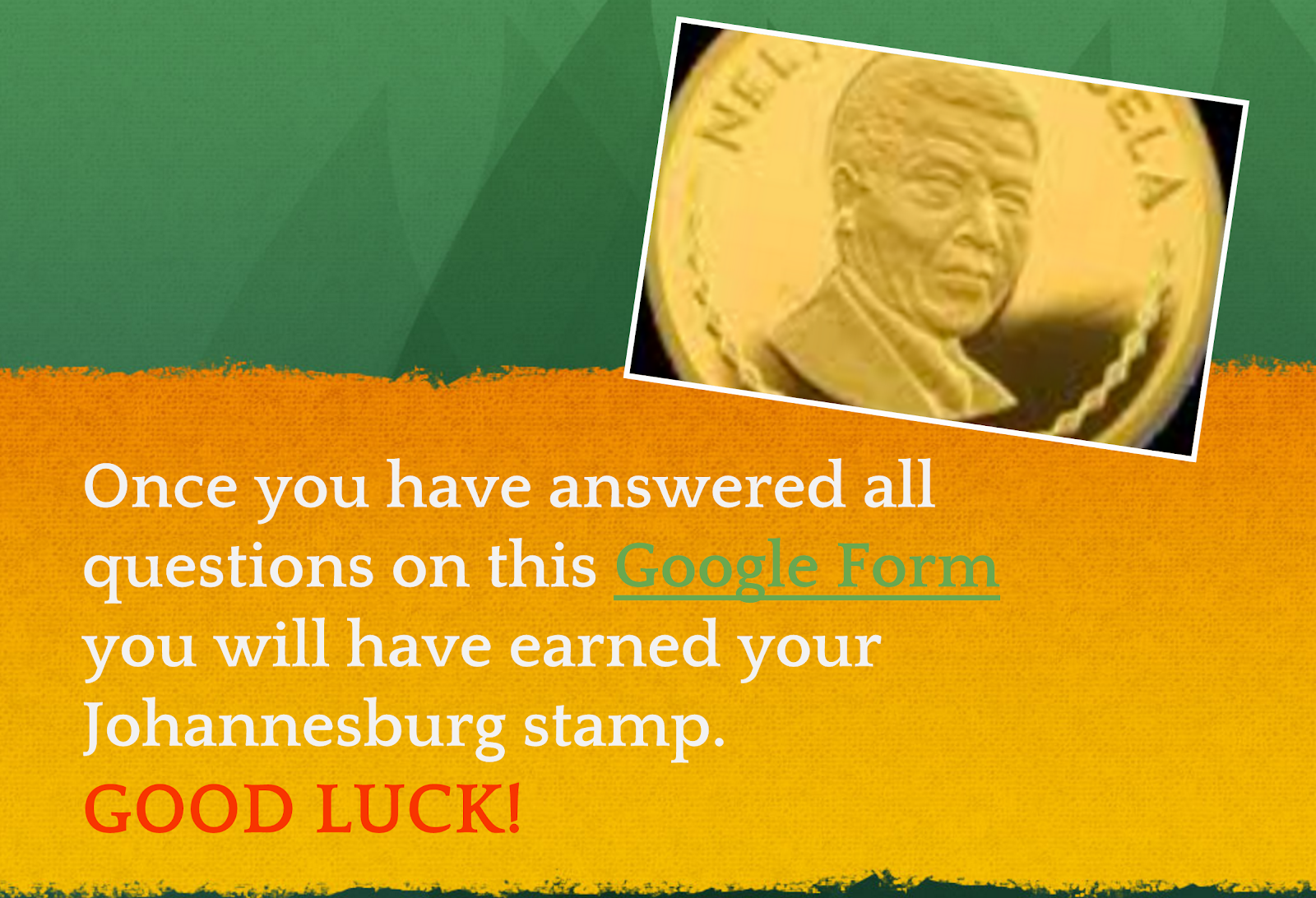
Each presentation is slightly different but typically they will contain: a brief video, facts about the location, a brainteaser and a link to a Google Form where students will complete a very simple quiz about the information presented.
Once the form is completed and submitted the participant will receive an email with a PDF attachment of the passport stamp for that particular location.
Google Spaces is a brand new tool from Google that will allow the user to quickly create their own SPACE online for discussions. Before you read ANY further I want everyone to be aware that at the time of this post Spaces is a few days old and is NOT available for GAFE, Apps for Work, or MyTools2Go users yet..... If you want to try it out you will have to use your own personal Gmail account. Think of this as a primer of what is to come!
The Spaces App is available on iOS and Android Devices. Feel free to
access my sample Space by clicking HERE. Feel free to leave some comments and
test it out. Spaces is a powerful version of Google+ that can allow for quick sharing of Pictures, Text, and links. The tool really promotes conversation on individual comments by adding pictures, stickers, or more links on each individual post
Students will enjoy how easy and visual it is. This tool could be used to discuss upcoming events to organize, research topics, class discussions, and resource sharing.
Teachers should be cautioned that this tool is inherently wide open. Anyone with the link can access the Space and participate at this time.
I will post again when it is available for GAFE so for now try it out with your own personal Gmail account! Doug Sadler @SadOne
On Friday, April 22ndF.J. Brennan High School held a Student Led Technology Summit for 540 elementary students. Each of the Grade 5, 6, and seven students in attendance arrived at Brennan with their own devices ready for a day of hands-on learning. Sixty student leaders from Brennan High School came in on their PD Day to facilitate and support these “future Cards”. Students enjoyed 3 x 50-minute sessions where they where they focused
on variety topics such as iMovie, Computer Programming, and Google Apps for Education.
For a TEACHER Reflection on the day, please visit Miss Brooks Has Class Blog for information on this and many other topics!
Embedded below are the slides I used during the PD session on Friday. I hope you find a use for them. The Evernote web clipper tool is fantastic and a great way to start storing your content in Evernote. The free account should meet your needs for years.
Log into the Chrome Browser
Consider the benefits of logging into the Chrome Browser. Sync your browser experience so you have the same setup at every location you work. The slides are embedded below.
This is a summary of a session that was run by Paul Gebrael on our tech PD day last week to create a Google Form for surveys, quizzes and tests. Step 1: Log into your MyTools2Go (or Gmail) account
Step 2: Select your drive
Step 3: Create a Google form. Go to New→ More→ Google Forms
Step 4: Begin creating your Google Form! This video may help
Step 5: Once you have completed your Form, send out the live link. You can do this by creating a bit.ly You could create a group in gmail. You could add the link to your Google Classroom or LMS Website.
Step 6: Collecting your responses. After your students have completed the test, quiz etc, their information is stored in a spreadsheet.
Step 7: Grading your assessment. Once you have collected your results, you will then run an add-on called Flubaroo. You will go to 1. Add-ons, 2. Grade assignment. This video may help:
Next, you’ll be prompted to assign weights to each question, discard questions etc.Leave it as the default, unless you have special questions.
Step 8: Mark your assessment. At this point you would have taken the quiz, test etc yourself and created the answer key. Select your answer key. I have labeled mine AnswerKey . See below.
Step 9: Marks are generated. You’ll receive a summary of your results, the average out of the possible points and how students did on each question.
Step 10: Sharing Grades. When you’re ready to share your grades, you simply go to Flubaroo, Share Grades.
You will be prompted to this screen. Here, you may add a message, include an answer key and send your emailed grades to the students who completed the quiz.
Once you are done, be sure to turn your form off, so no other entries come in after the allotted time for the assessment. In edit view, simply click the “accepting responses” button.
You will then see this dialogue box, which notifies you that the quiz is no longer accepting responses.
Use this video to help with Advanced Techniques with Google Forms
For example, using advanced add-ons, making password protected forms, using math expressions in questions, limiting who can take your test, having multiple correct answers, case sensitive answers etc.
If you are new to Social Media, hashtags may not seem important or useful. The reality is, they are an integral part of our online communication. What is a #hashtag you ask?
A hashtag starts with the pound symbol (#) and is followed by a single word (or words smashed together), no spaces.
The use of hashtags began with Twitter and has expanded to other forms of Social Media. The ability to search, organize and track a particular topic has made them beneficial in both social, educational and business settings. WIth over 3 million users on Twitter, hashtags are an efficient way to find more information about topics you are interested in.
When hashtags are used, they are kind of like subject lines of emails. They help you focus on the topic of the post. When we hear about things “trending” often what that refers to are the popular use of specific hashtags. For example on any given Thursday the popularity of the hashtag #tbt (throw back Thursday) tends to go up as people post there retro pictures.
Education related hashtags are some of the most useful in the “Twittersphere”. When a tweet comes out containing an educational hashtag, that is basically saying “hey this tweet is not some inane statement about going to Starbucks, it’s about something related to teaching”. And often with these tweets there will also be a link to take you to some sort of resource. Click on any of the hashtags below to see how people are using them (no Twitter account required)
#edchat - this is the most widely used hashtag in education. It is a great way to keep current and see what people are talking about.
#edtech – this covers a spectrum of topics focused on embedding technology into your classroom.
#mathchat - this is used for math related educational posts. You might think it might be more efficient to just use #math but as it turns out a lot of people don’t like math and are happy to say it on Twitter.
#scichat - find out what educators are sharing about science with this hashtag
#engchat - as you probably guessed, this hashtag goes with educational posts about teaching english.
#wectec - the hashtag that will be used on Feb 14 and on for WECDSB tec discussions
#bit15 - this hashtag facilitates the integration of new computing technology into the educational curriculum
These are just a few examples of educational hashtags. In many ways, these can be more useful to follow than people. With people you get all of their conversations. With these hashtags you get a lot of resources. The #hashtag is your friend.
Another way that hashtags are used are for what is called the “back channel” at conferences or workshops. This sometimes comes in the form of people Tweeting out interesting things they have heard or seen. Other times it is an actual conversation happening between those attending the conference and those following the hashtag.
Here are a few examples of “back channel” conversations:
Social Media is an excellent place to expand your personal learning network (PLN). Your PLN can be as large or small as you like. Google+, Facebook, and Twitter are just a few methods that can be used to network with educators across the globe. Hashtags can help you identify people with common interests.
We plan on using Social Networking platforms more and more at the WECDSB to help facilitate great ideas and professional connections. Ready to get started? Click on the any of the links below to expand your online professional profile.
The Ultimate Guide to Creating Assessments with Google Forms
Google Forms is an easy but powerful tool for teachers to create online assessments for their students. And with the help of the Flubaroo add-on, the quizzes can be graded automatically as well. There are many benefits for using online assessments with students:
Quicker feedback - With autograding quizzes, students can get their results in a matter of minutes, rather than having to wait until the next day (at the soonest) to see if they understand the material or need more help.
More frequent assessments - Since the quizzes can be graded electronically, teachers can easily give small assessments each day or so, giving teachers much more frequent feedback on how their students are doing, and if they need to adjust their instruction.
Statistics - Since the assessments are digital, so are the results, which makes it much easier to do item analysis, look for patterns, and determine where the needs are.
Collaboration - With digital assessments it is easy for teacher to collaborate with their colleagues when writing the quizzes, or to share assessments with other staff for their use.
Special Needs - By going digital we are also able to take advantage of assistive technology. For example, with online assessments students can zoom in as needed, and use text to speech to read the questions.
Multimedia - Online assessments don’t just have to be digital versions of the same old paper and pencil tests. Instead we can incorporate colour images and videos to provide a richer experience.
Savings - And of course going paperless can help save on paper, ink, and budgets.
And there are probably many more benefits as well. The next question then is …
how do you create, distribute, and grade online assessments?
See below for a large collections of resources I have created to give you everything
you need from getting started to advanced techniques. You will find two videos,
each an hour long, as well as several help guides and slideshows.
Article Written by: Eric Curts Small adaptations were made to the article for the purpose of this blog. Click HERE to visit Eric's website and view the full article.
Eric Curts is an Authorized Google Education Trainer and a Google Certified Innovator. His website Control Alt Achieve features extensive resources that he has created over the years focusing on transforming education with technology.
 Once you click the link you will be directed to a Google Slide Show created by students and/or teachers in each respective location. I recommend you select “Present” view for the best visual appearance.