Switch on Learning (description)

At the Windsor-Essex Catholic District School Board, we are Switching on Learning by integrating Google’s powerful ecosystem into every classroom. This blog is a dedicated space for sharing the ideas, methodologies, and digital tools that transform the modern educational experience. Our Digital Toolkit We empower educators and students by leveraging a robust, collaborative environment: Google Workspace for Education: Driving seamless collaboration through Docs, Drive, and Classroom. The Power of AI: Utilizing Gemini and integrated AI features to personalize learning and spark creativity. Data-Driven Assessment: Using MarkBook to track student growth with precision and transparency. The Process of Learning: Leveraging Revision History to emphasize growth, iteration, and the visible journey of a student's work. From interactive Chrome tools to digital storytelling, we aren't just using tech—we’re using it to bridge gaps, foster global collaboration, and future-proof our students' skills.

7 Googley Wintertime Activities for Kids


With the holiday season here, Eric Curts has updated his list of wintertime activities and projects that use Google tools. 

The current list includes:
1) Build a Snowman with Google Slides
2) Decorate a Christmas Tree with Google Slides
3) Wintertime Magnetic Poetry with Google Drawings
4) Holiday Greeting Cards with Google Drawings
5) Pixel Art Ornaments with Google Sheets
6) Wintertime Emoji Rebus Stories with Google Docs
7) Holiday Lights Writing with Google Docs

You can access all of the templates and directions at:
https://www.controlaltachieve.com/2019/12/7-winter-activities.html

DoInk GreenScreen App used to present Saint Projects


Green screen allows students to discuss, evaluate and reflect on their learning using their imagination and digital skills. 

Mrs. Edmunds grade 3/4 students at St. Rose have been learning about Saints in Religion class. They learned about and examined the lives of Patron Saints and explained how they are examples of hope that inspire us to live a holy life. Students then chose a Saint that they have heard about or were interested in, and researched 4-5 facts about them. Using a Green Screen, students dressed as their Saint and brought their projects alive.

Check out some of the students samples below.

Clare studied St. Nicholas

Natalie studied St. James

Rory studied St. Joseph


Rubrics are now available in Google Classroom!


Rubrics are now available in Google Classroom! 
Written by: Kelly Campbell-Dries


Are you looking for an interesting way to give students valuable feedback while clearly stating learning goals and curriculum expectations? Then sign up today to be a Beta Tester for the new Rubrics feature in Google Classroom. 

You might think that this is a lot of work, but trust me, it is not. I am currently a teacher at ACS, and I am always looking for new and innovative ways to leverage technology in the classroom. What I like about this feature is that it is extremely simple to use. 


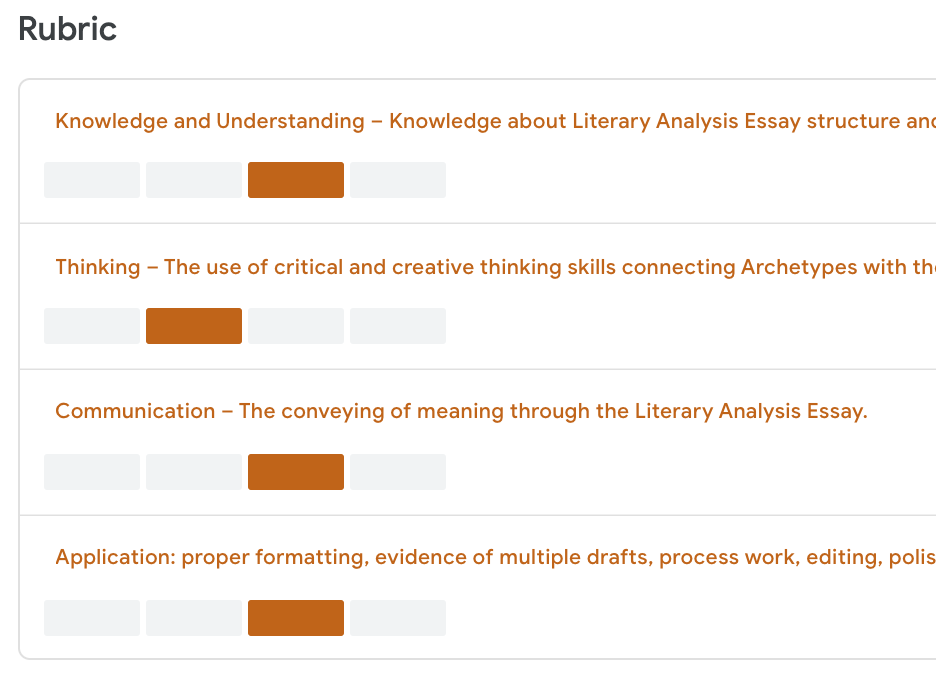
You begin by creating an Assignment in GC. There, you will see that there is a “Create Rubric” button where you can build your rubric. In HS, we mark out of four categories that are weighted differently. GC always made the assignment out of 100, so it was difficult to show students exactly how you marked their work in a digital format. With the Beta feature in GC, you can now assign category, with an explanation of what you are assessing. For example:
Here you can see that the criteria is there, and the orange blocks indicate the level of achievement. 

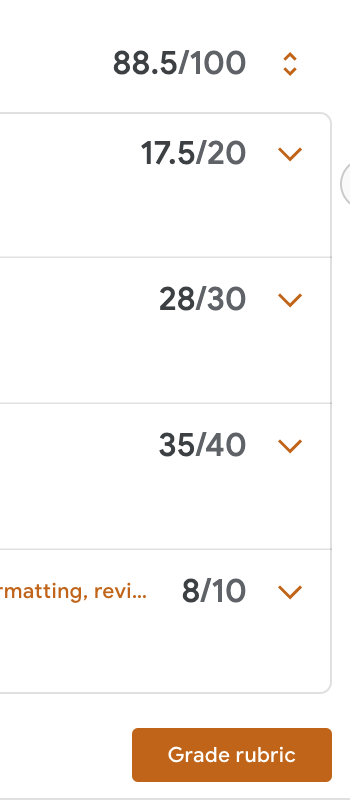
I make mine out of the particular weights according to my department. Here you can see how each of the levels are calculated. 
What I like about this feature, as you will see on the video, the student has the rubric on the left, as well as your direct comments, so you can easily see the valuable feedback you are given the students. 

An extra feature that I like about this as well is that students have the opportunity to respond and reflect on their essay in the Private Comments section. Here you can make goals for next steps, or reflect on their learning.
The possibilities are endless. 
Also, using this feature in GC is wonderful because you have the opportunity to reuse the assignment, even if you archive the class. The rubric comes with the assignment, so it can be used again and again. 
One final benefit of this is that GC keeps all your marks into Google Sheets in a live, updated document. What I am going to suggest to them however, is that it keeps track of the different marks, not just the overall mark. 

If you would like to give this a try, please click on the link below. 

Please see the following video that explains a little more about the features. 


Google Slides Now Allows for INTEGRATED AUDIO

Google Slides Now Allows for 
INTEGRATED AUDIO

Google has added the functionality to insert audio into slides and to play throughout your presentation.

INSERT - Audio

If the function is not available now it will be by the end of the month.

TED Student Talks Program

How It Works

Students work together to discuss and celebrate creative ideas. Use TED-Ed's flexible curriculum as a guide and help inspire tomorrow's TED speakers and leaders. There are 4 ways to create TED-Ed Student Talks:
  • In a Club: as a group of students in an after-school setting, led by student or adult.
  • In a classroom: as a group of students in a class, led by a teacher.
  • As part of another youth/ed program: as a plug-in to an existing program--for individual or groups of students who are part of programs run by our collaborative partners.
  • As individual students developing/sharing an idea on their own or with a partner.
Check out the TED ED website for more details on how you can incorporate TED-ED into your class or school club.  

Flipgrid - Empower Every Voice

Highlight STUDENT VOICE with Flipgrid.


How do you use it? 
Simple... 

  1. Teachers assign a question and/or topic.  
  2. Students respond with a short video (max 1.5 minutes).
  3. Teachers and students can then further engage through comments or response videos.  

Visit the Flipgrid website and see just how easy it is to get started.  


Hyperdocs

Home
Looking for a transformative way to deliver the curriculum in a blended classroom?


As stated on the Hyperdoc website: 

Hyperdocs are created by teachers and given to students to engage, educate, and inspire learning. It’s not about teaching technology, it’s about using the technology to TEACH.
5


Check out these examples created by our own WECDSB staff:

Kelly Campbell-Dries, English Teacher at Assumption High School shared her  "highlight" HyperDoc designed to teach students to write a CER essay (Claim, Evidence, Reasoning).   Kelly shares the document using the "Make A Copy" feature in Google Classroom allowing each student to work directly their Hyperdoc.


Kelly introduced the Hyperdoc using this video: 


Kelly's self-reflection:  I used this with my class and they LOVED it. When teaching college classes I try to prepare my students for a blended learning experience. Hyperdocs offer this to students in many ways. I really like how we start with the learning goals for the lesson and then explore the topic.

Click the link below to see additional Hyperdocs created by teachers at the WECDSB:
Grade 7 Geography - What are Landforms
Grade 5 Science - Habitats and Communities

You can find additional Hyperdocs and sample templates on the Hyperdocs website. 

Instructional Videos for New Features: Revision History

WECDSB | Revision History Updates ↑ WECDSB Revision History Updates Short ins...