Switch on Learning (description)

At the Windsor-Essex Catholic District School Board, we are Switching on Learning by integrating Google’s powerful ecosystem into every classroom. This blog is a dedicated space for sharing the ideas, methodologies, and digital tools that transform the modern educational experience. Our Digital Toolkit We empower educators and students by leveraging a robust, collaborative environment: Google Workspace for Education: Driving seamless collaboration through Docs, Drive, and Classroom. The Power of AI: Utilizing Gemini and integrated AI features to personalize learning and spark creativity. Data-Driven Assessment: Using MarkBook to track student growth with precision and transparency. The Process of Learning: Leveraging Revision History to emphasize growth, iteration, and the visible journey of a student's work. From interactive Chrome tools to digital storytelling, we aren't just using tech—we’re using it to bridge gaps, foster global collaboration, and future-proof our students' skills.

Exploring EBSCOhost databases

EBSCOhost databases

EBSCOhost offers free access to a number of databases.  Some are targeted at all users, some secondary and some elementary students.  You can assign a specific database to your students to use based on their age and grade level and/or based on the purpose for the database.  

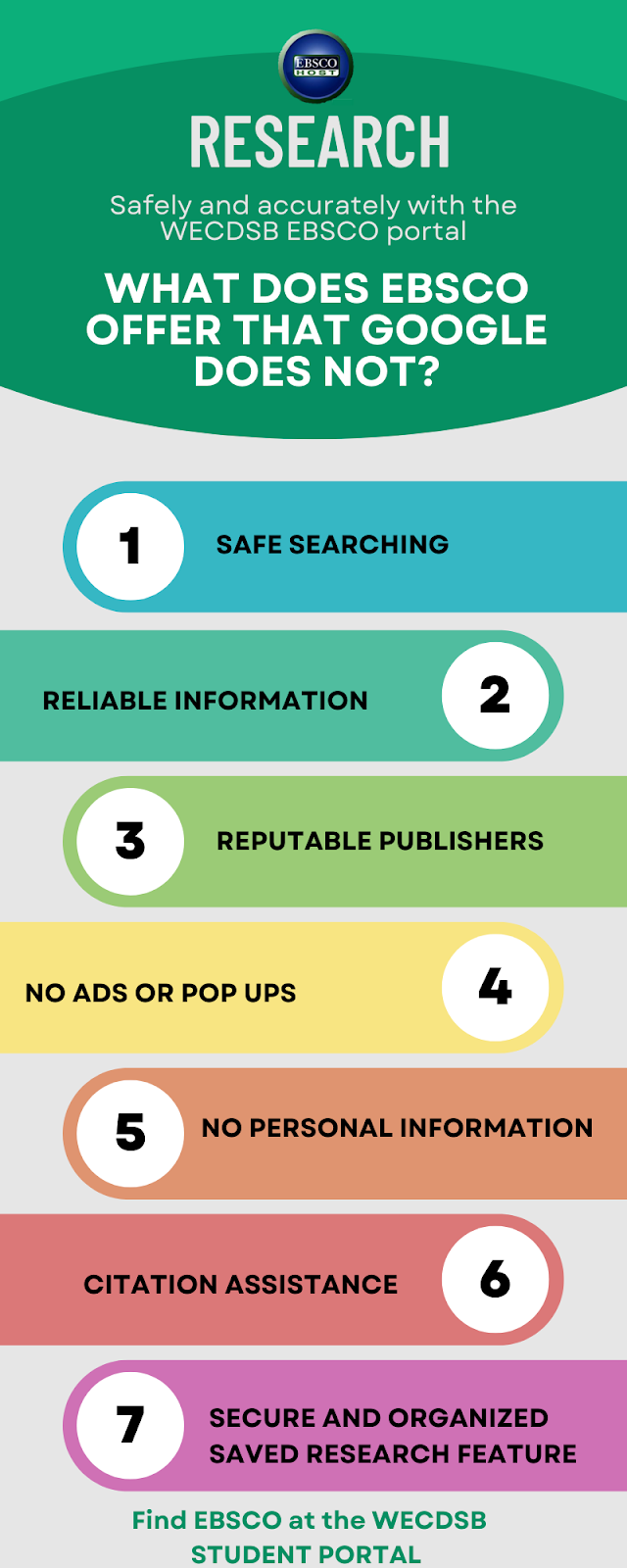
Take a look at the infographic below for a description of some available databases and their uses.  There is also a link below so you can share the infographic with your students or post it in your classrooms.

Exploring EBSCOhost databases infographic .pdf

Here are a few quick videos about how to access EBSCOhost.

Accessing EBSCO as a student


Accessing EBSCO as a teacher


(Re) Introducing EBSCOhost


Are your students doing research for their culminating activities?

Are you doing some research for your lessons?


EBSCOhost is a search tool that offers safe, verified and curated databases for student

and teacher use.  


Students can access EBSCOhost from the student portal at www.wecdsb.on.ca

Teachers can access EBSCOhost from the staff portal>For Teachers at www.wecdsb.on.ca 


Look for more about the uses and benefits of EBSCOhost over the next few weeks.

New Google Drive Feature - Cut, Copy and Paste thorugh keyboard shortcuts


New Google Drive Feature - Cut, Copy and Paste through keyboard shortcuts


Google Drive has implemented a new feature that allows you to cut, copy and paste using keyboard shortcuts.  This makes it much easier to organize your drive withouth having to use the menus available thorugh right clicking on the file.  To use these new features, simply navigate to the file in your google drive and click on it.  Use the shortcut key cobination to cut, copy or paste the file.

NOTE:  

When you use the copy function, the new file will be called "Copy of " plus the orginal file name
When you use the cut function, the file will be removed from the original location.

CUT: Press CTRL + X (PC) or CMD + X (MAC)
COPY: Press CTRL + C (PC) or CMD + C (MAC)
PASTE: Press CTRL + V (PC) or CMD + V (MAC)


New Google Meet Feature - Meets Ends After Five Minutes if Only One Participant


New Google Meet Feature - Meets Ends After Five Minutes if Only One Participant


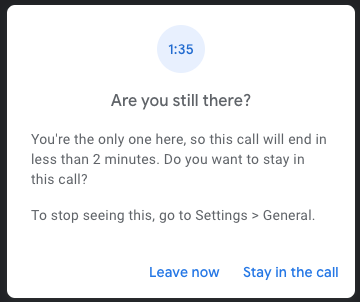
A new feature of Google Meet has been rolled out.  With this new feature, if you are the only participant in the Meet for a period of five minutes, you will get a warning.  In this warning you will be able to choose to leave the Meet or stay in the call.  If you do not make a selection within 2 minutes, the Meet will automatically end.   


If you do not want this feature enabled you can disable it in your Google Meet settings. 


To do this:


  1.  Click on the “More Options” button on the bottom of your screen.  This is the button with three vertical dots that is next to the “Hang Up” button.


  1. Select “Settings”


  1. Click on “General” and then turn the toggle off for “Leave empty calls”

Google Classroom Update - Post to multiple Classrooms


Google Classroom Update - Post to multiple Classrooms

An exciting and long awaited updated to Google Classroom is now available.  You now have the ability to post stream announcments, assignments, quizzes, questions and material to multiple classrooms. 

When you are cretaing an item you will notice there are now checkboxes availble for you to select the classrooms you wish to post to.

It is important to keep in mind that when you post to muliple classrooms:
  • You can no longer select to post to individual students.  The item will be visible to all students in each classroom that you select
  • If you are using topics, the item will post to the same topic in every classroom that is selected.


New Google Docs Pageless Format


NEW!  Google Docs Pageless Format


           In the latest Google Workspace update, Google has introduced the 'pageless' format in Google Docs.  A pageless format means that your document will not have any pagebreaks, which allows for more flexibility in the creation of your document. This is a great option to use if you know that your doucment will be used for digital purposes only.

When your document is in the "pageless" format, any images or charts that you insert will now have scroll bars to ensure that it fits onto the document
.


Here is how you change your document settings to make it pageless.

1.  From the top menu, click on File and then Page Setup

2. You will now see an option to select a Pageless format

3.  You may also change the background color and select if you want the "pageless" mode to be your default, which means that any new documents created will be in the "pageless" format.

Once you are ready, press "Ok".


More information on the new "pageless" Google Docs format can be found here.


Instructional Videos for New Features: Revision History

WECDSB | Revision History Updates ↑ WECDSB Revision History Updates Short ins...