Stay up to date with Google Workspace Updates! Click on the icon to visit the subject-specific blog.

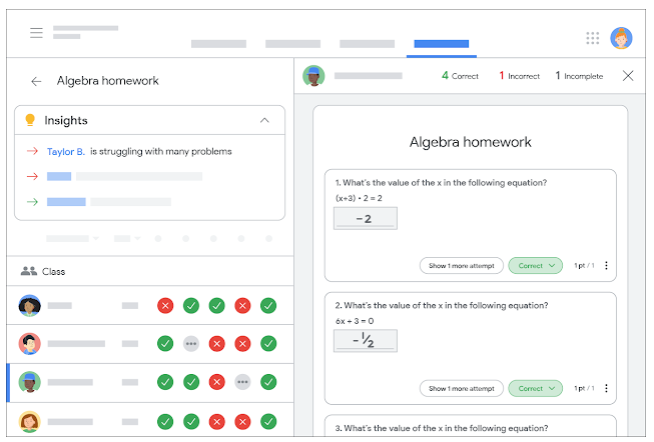
Google has recently announced a new and powerful tool that will be coming to Google Classroom, called 'Practice Sets'. Practice sets can be given to students in the same fashion that homework is assigned. Practice sets can be created using new or existing material.
The power behind practice sets is twofold, for the student's and the teacher's experiences. Once the practice set has been created, Google's powerful artificial intelligence tools will review the practice set and find useful videos and concept cards that can help the student better understand the concepts being presented. Upon the teacher's approval, these videos and concept cards can be embedded into the practice setting. The 'auto grading' feature within practice sets will let the students know when they are correct and will provide the teacher-approved videos and concept cards where appropriate. This will provide immediate feedback for the students as they are working through the practice set.

 New Google Drive Feature - Cut, Copy and Paste through keyboard shortcuts
New Google Meet Feature - Meets Ends After Five Minutes if Only One Participant
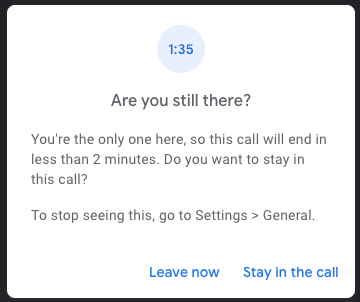
A new feature of Google Meet has been rolled out. With this new feature, if you are the only participant in the Meet for a period of five minutes, you will get a warning. In this warning you will be able to choose to leave the Meet or stay in the call. If you do not make a selection within 2 minutes, the Meet will automatically end.
If you do not want this feature enabled you can disable it in your Google Meet settings.
To do this:
Click on the “More Options” button on the bottom of your screen. This is the button with three vertical dots that is next to the “Hang Up” button.
Select “Settings”
Click on “General” and then turn the toggle off for “Leave empty calls”
 Google Classroom Update - Post to multiple Classrooms

 NEW! Google Docs Pageless Format


 NEW!! Google Orginality Reports Update
 Watermarks in Google Docs


 Due to recent changes to Google user accounts who are under 18 years of age, students can no longer embed youtube videos into Google Slides presentations. Google is aware of this issue, however, has not comitted to a date when this will be fixed. In the interim, here is a workaround for students to insert videos into a Google Slides presentation.
 New Google Meet Host Controls


 The following updates are already live in Google Classroom. In the second section of this document you will find upcoming updates.
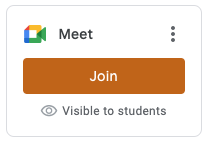
The Google Meet link is no longer posted in the banner of your Classroom. You will now see a separate box on the top left of your screen with the Meet data.
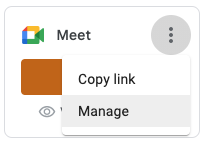
If you click on the three dots, and then click “Manage”
You can now edit your settings here, (rather than using the settings wheel)
To reset the Meet link, click on the drop down arrow beside the Meet link. You can also make the link visible/invisible to students with the toggle switch.
Google Meet now has the ability to add co-hosts to your Meet. When you are in the meet, you can do this by clicking on the three dots next to a participants name and selecting “Add as co-host”
If you have a co-teachers in your Classroom, they will automatically be a host of the Meet when they join.
Embedded Apps
A number of apps including Kahoot, EdPuzzle and Newsela will be embedded right into the Google Classroom. This means that when you post a link to one of these applications, the app will open right in the Classroom and not on a new page. As well, students will no longer need to login to the application, thus simplifying the process.
Student Engagement
A very exciting change that I am sure all educators will appreciate is the student engagement update. With this update, teachers in the Google Classroom will be able to see data such as which students submitted assignments or commented on a post on a particular day. This will be a fantastic way to see how students are interacting with the Google Classroom!
Scheduling Assignments to Multiple Classrooms
Coming later this year, teachers will be able to post the same assignment to multiple Classrooms. You will also be able to assign separate due dates for each Classroom. This will be a great time saver for teachers who use multiple Classrooms!
Students submitting better pictures of work
A big frustration for teachers is receiving multiple files for one assignment or when students submit work that is horizontal or upside down! With this update coming up students will be able to rotate and crop their work after a picture is taken and merge multiple photos into one document.
Co-Hosts
The host of the Google Meet can now add up to 25 co-hosts to a Google Meet. The co-host will have all the functionality of the host including muting and removing participants as well as creating breakout rooms and controlling the additional activities including polls and Q and A. Any recordings or attendance files will be sent to the main host.
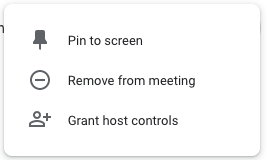
To designate a co-host, click on the three dots beside their name in the people tab of your Google Meet. Select “Grant Host Controls”
Unpin your presentation while presenting
When you are presenting in Google Meet, your presentation takes up most of the screen. This means that you cannot see your whole class. Now, you can ‘unpin’ your presentation. Your presentation box will then be the same size as the rest of your participants in the Meet, and you will be able to see your whole class while you are presenting.
To unpin, hover your mouse over your presentation in Google Meet. Then click the unpin button.
Moving between tabs
When you are presenting a tab in Google Meet, you can now easily present a different tab. You can do this by clicking on the “Share this tab instead” which will be at the top of your screen.
As well, if you are presenting a tab and wish to quickly return to the Google Meet tab, you can select the “View tab: meet.google.com” button.
Google Forms
Google forms now have an auto-save feature. This means that when logged in to a board account, the user can return back to the form and anything that was previously filled out will be saved. This will give you and your students peace of mind when using Google Forms for assessment. Prior to this feature, all work would be lost if there was a disruption in the internet connection or the student navigated away from the page.
Any information that is filled on the form will be saved for 30 days, or until the form is submitted. An overview of this feature can be viewed in this video.
Google “Rooms” will be Google “Spaces”
Google “Rooms” which is available through Google mail or through Google chat, will soon be called Google “Spaces”. Spaces are a great way to communicate with your colleagues. Spaces is a great way to collaborate with teams as it allows you to send messages, assign tasks, share files, and have Google Meets.
You can easily create a Google Space in your Gmail window. On the bottom left side of your screen, simply click the + sign beside “Spaces”. Then you can add the individuals who will be a part of your space.
Simply click the “Files” or “Tasks” tab to add files or assign tasks.
Tasks can be assigned to the entire “Space” or it can be assigned individually. Due dates can also be assigned to tasks.
By clicking on the “Files” tab, you can choose to add files to share with your group. As well, any files that are shared in the chat tab will be listed on this tab. A great way to organize files for the space!
Google Contacts
Google contacts can be accessed through the side panel in your Google Mail. Now, when you search for a contact, you will get some very useful information regarding this contact. You can see a list of past email correspondence with that contact. As well, you can quickly create a calendar event, a Google Meet, a chat message or an email to that contact using the icons shown.
Google Classroom
Google Classroom has the ability to schedule announcements, material and assignment posts as well as other items. Since you should not be posting any material in your ‘off weeks’, the ability to schedule these items can help you with your planning and organization.
When you are creating the item, simply click on the drop down arrow beside the ‘Assign’ , ‘Post’’ or “Ask” button.
Then select “Schedule” and select the appropriate date/time. The item that you just created will not be visible for the students until that date/time.