Switch on Learning (description)

At the Windsor-Essex Catholic District School Board, we are Switching on Learning by integrating Google’s powerful ecosystem into every classroom. This blog is a dedicated space for sharing the ideas, methodologies, and digital tools that transform the modern educational experience. Our Digital Toolkit We empower educators and students by leveraging a robust, collaborative environment: Google Workspace for Education: Driving seamless collaboration through Docs, Drive, and Classroom. The Power of AI: Utilizing Gemini and integrated AI features to personalize learning and spark creativity. Data-Driven Assessment: Using MarkBook to track student growth with precision and transparency. The Process of Learning: Leveraging Revision History to emphasize growth, iteration, and the visible journey of a student's work. From interactive Chrome tools to digital storytelling, we aren't just using tech—we’re using it to bridge gaps, foster global collaboration, and future-proof our students' skills.
Showing posts with label Pedagogical Practice. Show all posts

Google Workspace Updates


 Stay up to date with Google Workspace Updates! Click on the icon to visit the subject-specific blog. 


New to Google Classroom - Practice Sets!

 New to Google Classroom - Practice Sets!


Google has recently announced a new and powerful tool that will be coming to Google Classroom, called 'Practice Sets'.  Practice sets can be given to students in the same fashion that homework is assigned.   Practice sets can be created using new or existing material.

The power behind practice sets is twofold, for the student's and the teacher's experiences.  Once the practice set has been created, Google's powerful artificial intelligence tools will review the practice set and find useful videos and concept cards that can help the student better understand the concepts being presented.  Upon the teacher's approval, these videos and concept cards can be embedded into the practice setting.  The 'auto grading' feature within practice sets will let the students know when they are correct and will provide the teacher-approved videos and concept cards where appropriate.  This will provide immediate feedback for the students as they are working through the practice set.

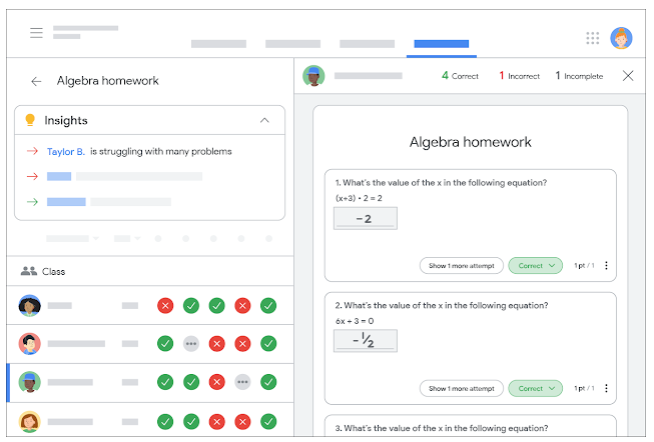

From the teacher's experience, practice sets provide an enhanced grading view which will show the class's performance and results of every attempt made by the students.  Furthermore, the AI tools will provide insights using classwide trends to inform teachers on what concepts the class or individual students may be struggling with.


5 minute assessment reviews: Triangulation


Hello again,
Today we are going to begin looking at how to triangulate your assessment, both by including observation, conversation and product in judging your students' mastery and by using three points of data guide your assessment.

The first video discusses using observation, conversation and product to assess our students.


The second video begins to look at using three points of data collection (that is three assessments) to both guide your teaching and also make your assessment more valid.  This video is assuming that the 3 points of data are all equally weighted an that the course, or the unit is scaffolded and one concept is built on another.  In a subject like English (my area), the assumption is that the entire course builds upon earlier concepts and understandings.  In a subject like science or math, each unit of study might build upon earlier concepts in the course or just the unit and be scaffolded in that way.


I hope that these ideas can open a conversation about how teachers use triangulation to make their assessments fair and reliable.

The next video will dig deeper into looking at most recent and most consistent marks and I will do an English teacher explanation of measure of central tendency.

Let's keep the conversation going.


5 Minute Assessment Reviews: Damian Cooper on Triangulation & Curriculum Expectations


This begins a short series of 5 minute (or less) assessment reviews.  Like many of you, I hear terms in education and know what they generally mean but find myself needing to do a quick google search to get the specifics if I want to think more deeply about the topic.

Now that I am focusing on assessment as your faithful Secondary Assessment Teacher, I thought I would share a few deeper dives into some of the terms and concepts we teachers talk about and are guided by every day .

The first in this series is an overview that is presented by Damian Cooper.  It will give you a quick, 5 minute overview of what triangulation is and how that fits in with our own overall and specific curriculum expectations. Cooper suggests that using technology is the way to collect triangulated evidence and we will explore this more later in the series.

In the next post, I will look more specifically at triangulation and what that means in a short video.

If you would like to learn more about a specific aspect of assessment, evaluation or reporting and all the terms, ideas and examples therein, please email me and suggest a post.  

Now, on to Damian Cooper:


New and Upcoming Updates to Google Classroom

The following updates are already live in Google Classroom.  In the second section of this document you will find upcoming updates.


  1.  Google Meet Link


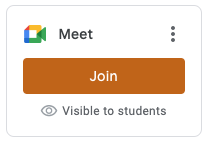
The Google Meet link is no longer posted in the banner of your Classroom.  You will now see a separate box on the top left of your screen with the Meet data.

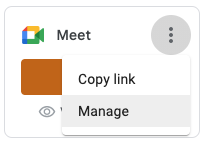
If you click on the three dots, and then click “Manage”


You can now edit your settings here, (rather than using the settings wheel)


To reset the Meet link, click on the drop down arrow beside the Meet link.  You can also make the link visible/invisible to students with the toggle switch.


  1. Co-Teachers are now automatically co-hosts in Google Meet


Google Meet now has the ability to add co-hosts to your Meet.  When you are in the meet, you can do this by clicking on the three dots next to a participants name and selecting “Add as co-host”


If you have a co-teachers in your Classroom, they will automatically be a host of the Meet when they join.


Upcoming Changes to Google Classroom (coming later this year)


  1. Embedded Apps


A number of apps including Kahoot, EdPuzzle and Newsela will be embedded right into the Google Classroom. This means that when you post a link to one of these applications, the app will open right in the Classroom and not on a new page.   As well, students will no longer need to login to the application, thus simplifying the process.  


  1. Student Engagement


A very exciting change that I am sure all educators will appreciate is the student engagement update.  With this update, teachers in the Google Classroom will be able to see data such as which students submitted assignments or commented on a post on a particular day. This will be a fantastic way to see how students are interacting with the Google Classroom!


  1. Scheduling Assignments to Multiple Classrooms


Coming later this year, teachers will be able to post the same assignment to multiple Classrooms.  You will also be able to assign separate due dates for each Classroom.  This will be a great time saver for teachers who use multiple Classrooms!


  1. Students submitting better pictures of work


A big frustration for teachers is receiving multiple files for one assignment or when students submit work that is horizontal or upside down!  With this update coming up students will be able to rotate  and crop their work after a picture is taken and merge multiple photos into one document.  


What's New in Tech


Co-Hosts


The host of the Google Meet can now add up to 25 co-hosts to a Google Meet.  The co-host will have all the functionality of the host including muting and removing participants as well as creating breakout rooms and controlling the additional activities including polls and Q and A.  Any recordings or attendance files will be sent to the main host.


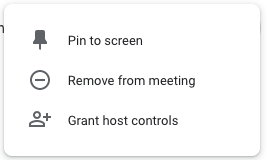
To designate a co-host, click on the three dots beside their name in the people tab of your Google Meet.  Select “Grant Host Controls”


Unpin your presentation while presenting


When you are presenting in Google Meet, your presentation takes up most of the screen.  This means that you cannot see your whole class.  Now, you can ‘unpin’ your presentation.  Your presentation box will then be the same size as the rest of your participants in the Meet, and you will be able to see your whole class while you are presenting.


To unpin, hover your mouse over your presentation in Google Meet.  Then click the unpin button.


Moving between tabs

When you are presenting a tab in Google Meet, you can now easily present a different tab.  You can do this by clicking on the “Share this tab instead” which will be at the top of your screen. 

As well, if you are presenting a tab and wish to quickly return to the Google Meet tab, you can select the “View tab: meet.google.com” button. 


    Google Forms


Google forms now have an auto-save feature.  This means that when logged in to a board account, the user can return back to the form and anything that was previously filled out will be saved.  This will give you and your students peace of mind when using Google Forms for assessment.  Prior to this feature, all work would be lost if there was a disruption in the internet connection or the student navigated away from the page. 


Any information that is filled on the form will be saved for 30 days, or until the form is submitted.  An overview of this feature can be viewed in this video.


           Google “Rooms” will be Google “Spaces”


Google “Rooms” which is available through Google mail or through Google chat, will soon be called Google “Spaces”.  Spaces are a great way to communicate with your colleagues.  Spaces is a great way to collaborate with teams as it allows you to send messages, assign tasks, share files, and have Google Meets.  


You can easily create a Google Space in your Gmail window.  On the bottom left side of your screen, simply click the + sign beside “Spaces”.  Then you can add the individuals who will be a part of your space. 


Simply click the “Files” or “Tasks” tab to add files or assign tasks.


Tasks can be assigned to the entire “Space” or it can be assigned individually.  Due dates can also be assigned to tasks.  


By clicking on the “Files” tab, you can choose to add files to share with your group.  As well, any files that are shared in the chat tab will be listed on this tab.  A great way to organize files for the space!


Google Contacts


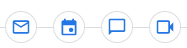
Google contacts can be accessed through the side panel in your Google Mail.  Now, when you search for a contact, you will get some very useful information regarding this contact.  You can see a list of past email correspondence with that contact.  As well, you can quickly create a calendar event, a Google Meet, a chat message or an email to that contact using the icons shown.


Google Classroom


Google Classroom has the ability to schedule announcements, material and assignment posts as well as other items.  Since you should not be posting any material in your ‘off weeks’, the ability to schedule these items can help you with your planning and organization.


When you are creating the item, simply click on the drop down arrow beside the ‘Assign’ , ‘Post’’ or “Ask” button.

Then select “Schedule” and select the appropriate date/time.  The item that you just created will not be visible for the students until that date/time.  


Google Workspace - New features have been rolled out


Google Workspace (formerly G-Suite) has rolled out some very useful features this week in Google Meet.

Breakout Rooms

  • This new feature allows you to create small groups within your Google Meet.  You can easily customize how many breakout rooms you would like to use, as well as randomize the groups or create specific groupings of participants.  When you are ready to go back to large group discussions, you can call all your participants back to the main room with a simple click of a button.  When testing out this long-awaited feature, it did not disappoint!
Polls
  • The polls feature allows you to pose 'multiple choice' type questions to the participants of your Google Meet.  You can easily manage when the polls are seen by your participants and if you would like your participants to see the results of the polls. What a great way to keep your participants engaged in the topic of conversation. 
Q and A
  • This feature allows your participants to pose questions to the moderator of the Meet.  Other participants can then 'upvote' the posted questions, which indicates that they also have the same question.  Upvotes allows the moderator to prioritize the questions that are asked.  The moderator also has control of the Q and A board with the ability to hide, delete, or mark questions as 'answered'.  The moderator can also customize what questions are shown using the filter or change the order in which the questions are displayed.

Reports

At the end of the Meet, the moderator will get reports, including results from the polls and the 'Q and A' board. As well, if there are more than five participants in the meet, the moderator will get an attendance report which outlines the log-in and log-out time for each participant and the length of time that the participant was in the Meet.  All of these reports are automatically emailed to the moderator at the conclusion of the Meet.


For more information on these new Google Meet features, please read the following tutorial.


Turnitin is Gone but now we have Google Originality Reports


Google Originality Reports  


    Google originality reports can be used in Google Classroom assignments.  If you want to use Originality Reports, simply click the checkbox next to "Check plagiarism(originality)".  This box is located on the bottom right-hand side of your screen when you are creating an assignment.  Below are some frequently asked questions.  


1.  What type of files do Originality Reports work with?

    Originality Reports only work with Google Docs.  


2.  Can students run Originality Reports on their own work?

        Students can run a report on their own work up to three times for each assignment.  If the teacher turns on Originality Reports before students submit their work, the students can run the reports prior to submission.  If the teacher turns on Originality Reports after student submission, the student will not be able to run the originality report until after the work is returned to them.  They can then resubmit the work if necessary. 

    Regardless of when the Originality Reports were checked off, the teacher will always be able to run the reports on student work.

3. How is an Originality Report created?

    The reports use Google Search to compare a student's Google Docs file against webpages and books on the internet.  Once teachers have access to G Suite Enterprise for Education account, the student's file will also be compared to other student work submitted in the board's domain. 

Originality Reports do not compare students' work against Google Scholar or students' work from external schools. 

4.  How long are Originality Reports kept?

    Google will automatically delete originality reports after 45 days, however, after this period, the teacher can run another originality report if desired.  Another option is to print the report to PDF and save it to Google drive. 

5.  What information is available in the Originality Report?

    The teacher has the ability to change the report from the number of flagged passages to the percentage of the student work that was flagged.  The teacher may also choose to highlight the flagged passages as well.  

        The teacher may also view the web content from which the passage was flagged by clicking on 'Web Matches'


If you would like more information on Google Originality Reports please visit Google's support page here


Google Meet Promised Changes Are Rolling Out!


 Google Meet Changes ROLL OUT!

How to See Your Entire Class in Google Meet 


Exciting News! Google Meet has now changed it’s layouts so you can now see up to 49 participants at once.


  1. Once you are in a Google Meet, proceed to the 3 dots menu at the bottom right corner of the screen, and then select change layout


  1. Choose tiled view


  1. At the bottom of this box, you now have the ability to change how many participants are in your view by moving the circle along the bottom. 49 is currently the maximum number of participants that you can see at once. 


*Note: You can set the number to less than 49 by moving the circle accordingly if you have fewer participants joining.


A video tutorial of this process can be accessed by clicking here


Google added HOST CONTROLS


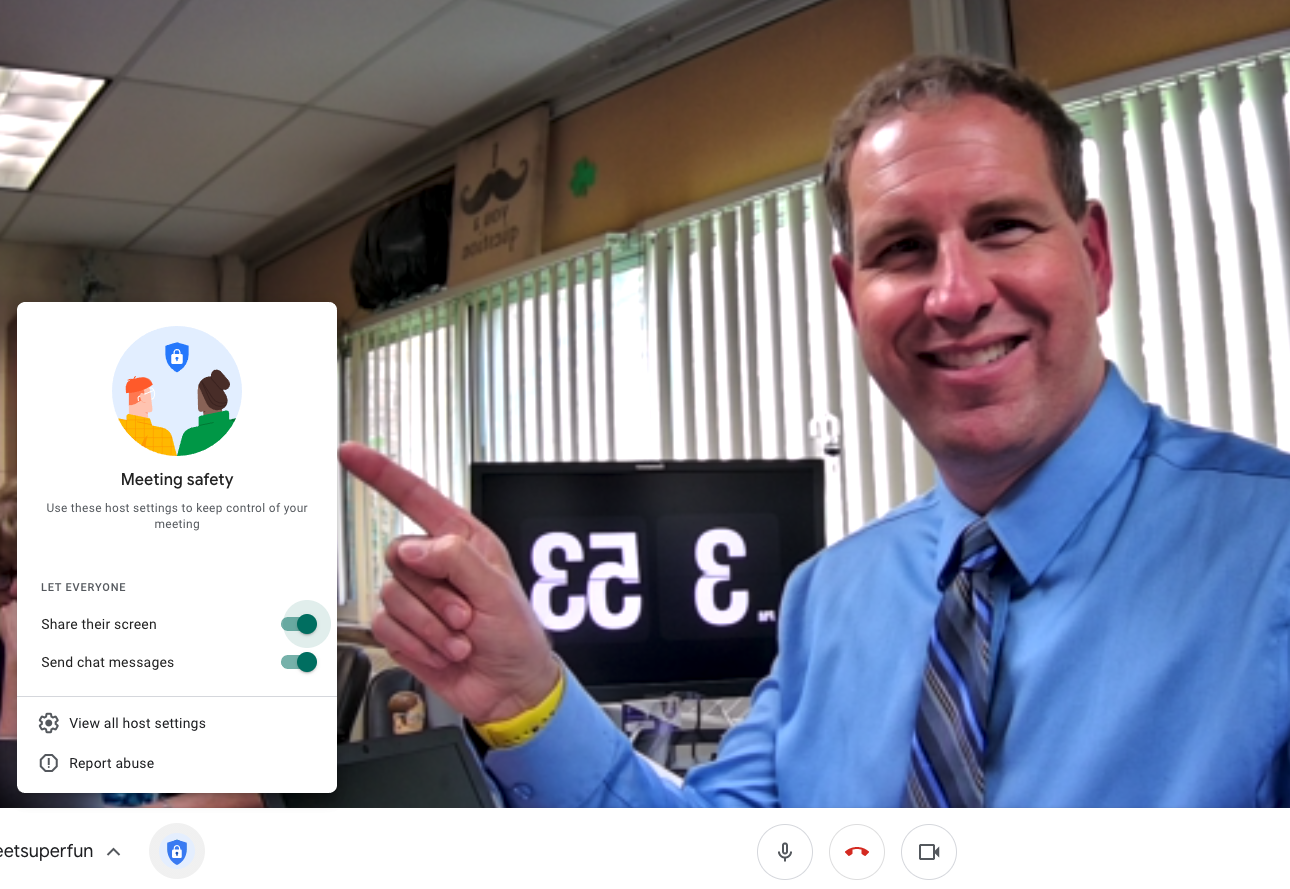
Located at the bottom LEFT of the screen the FIRST PERSON in will now see a Shield icon with a lock on it.  This means you are the first person in the meeting.  The first person in the meeting has Host Control.  For now, you can:


*  Turn off screen sharing

* Disable Chat messages

* Mute Students

* Remove Students

* Start the Recording


If you do not see the Blue Shield Icon exit the meet and RESET your Google Meet Link.


Rubrics are now available in Google Classroom!


Rubrics are now available in Google Classroom! 
Written by: Kelly Campbell-Dries


Are you looking for an interesting way to give students valuable feedback while clearly stating learning goals and curriculum expectations? Then sign up today to be a Beta Tester for the new Rubrics feature in Google Classroom. 

You might think that this is a lot of work, but trust me, it is not. I am currently a teacher at ACS, and I am always looking for new and innovative ways to leverage technology in the classroom. What I like about this feature is that it is extremely simple to use. 


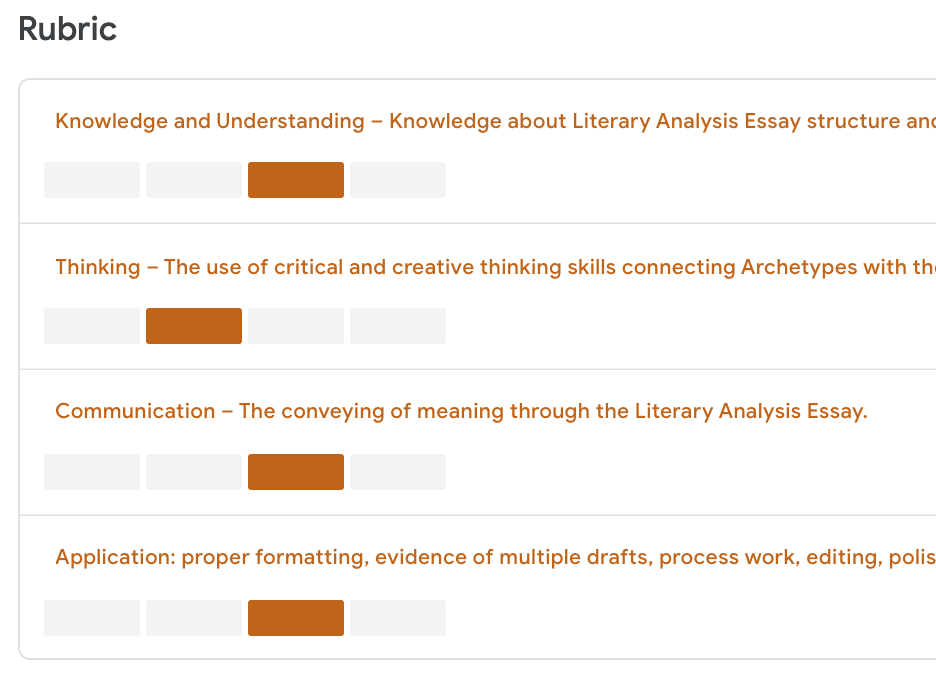
You begin by creating an Assignment in GC. There, you will see that there is a “Create Rubric” button where you can build your rubric. In HS, we mark out of four categories that are weighted differently. GC always made the assignment out of 100, so it was difficult to show students exactly how you marked their work in a digital format. With the Beta feature in GC, you can now assign category, with an explanation of what you are assessing. For example:
Here you can see that the criteria is there, and the orange blocks indicate the level of achievement. 

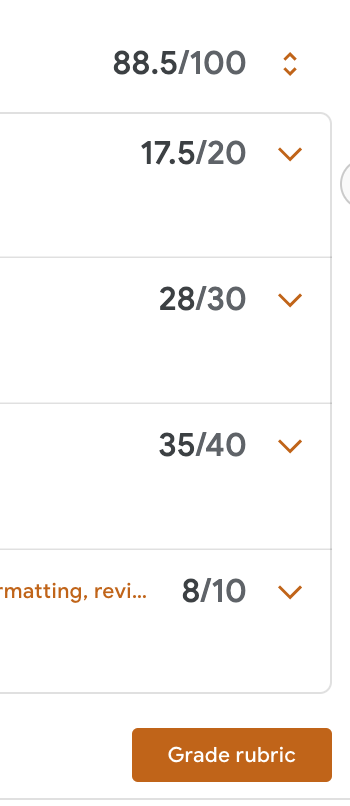
I make mine out of the particular weights according to my department. Here you can see how each of the levels are calculated. 

What I like about this feature, as you will see on the video, the student has the rubric on the left, as well as your direct comments, so you can easily see the valuable feedback you are given the students. 

An extra feature that I like about this as well is that students have the opportunity to respond and reflect on their essay in the Private Comments section. Here you can make goals for next steps, or reflect on their learning.
The possibilities are endless. 
Also, using this feature in GC is wonderful because you have the opportunity to reuse the assignment, even if you archive the class. The rubric comes with the assignment, so it can be used again and again. 
One final benefit of this is that GC keeps all your marks into Google Sheets in a live, updated document. What I am going to suggest to them however, is that it keeps track of the different marks, not just the overall mark. 

If you would like to give this a try, please click on the link below. 

Please see the following video that explains a little more about the features. 


TED Student Talks Program

How It Works

Students work together to discuss and celebrate creative ideas. Use TED-Ed's flexible curriculum as a guide and help inspire tomorrow's TED speakers and leaders. There are 4 ways to create TED-Ed Student Talks:
  • In a Club: as a group of students in an after-school setting, led by student or adult.
  • In a classroom: as a group of students in a class, led by a teacher.
  • As part of another youth/ed program: as a plug-in to an existing program--for individual or groups of students who are part of programs run by our collaborative partners.
  • As individual students developing/sharing an idea on their own or with a partner.
Check out the TED ED website for more details on how you can incorporate TED-ED into your class or school club.  

Flipgrid - Empower Every Voice

Highlight STUDENT VOICE with Flipgrid.


How do you use it? 
Simple... 

  1. Teachers assign a question and/or topic.  
  2. Students respond with a short video (max 1.5 minutes).
  3. Teachers and students can then further engage through comments or response videos.  

Visit the Flipgrid website and see just how easy it is to get started.  


Hyperdocs

Home
Looking for a transformative way to deliver the curriculum in a blended classroom?


As stated on the Hyperdoc website: 

Hyperdocs are created by teachers and given to students to engage, educate, and inspire learning. It’s not about teaching technology, it’s about using the technology to TEACH.
5


Check out these examples created by our own WECDSB staff:

Kelly Campbell-Dries, English Teacher at Assumption High School shared her  "highlight" HyperDoc designed to teach students to write a CER essay (Claim, Evidence, Reasoning).   Kelly shares the document using the "Make A Copy" feature in Google Classroom allowing each student to work directly their Hyperdoc.


Kelly introduced the Hyperdoc using this video: 


Kelly's self-reflection:  I used this with my class and they LOVED it. When teaching college classes I try to prepare my students for a blended learning experience. Hyperdocs offer this to students in many ways. I really like how we start with the learning goals for the lesson and then explore the topic.

Click the link below to see additional Hyperdocs created by teachers at the WECDSB:
Grade 7 Geography - What are Landforms
Grade 5 Science - Habitats and Communities

You can find additional Hyperdocs and sample templates on the Hyperdocs website. 

Instructional Videos for New Features: Revision History

WECDSB | Revision History Updates ↑ WECDSB Revision History Updates Short ins...