 New Features to the Google Meet Preview Window
The Google Meet preview window has had some significant changes this week. This post will take you through those changes.

This will give you three options:

- "Create a meeting for later" will generate a URL that can be shared with your meeting participants. When you are ready to join the Meet, simply paste the URL into your browser.
- "Start an instant meeting" will immediately start a Meet. You can then share the Meet URL or invite participants to the Meet through the 'add people' function.
- "Schedule in Google Calendar", allows you to schedule a Meet just as you would when using the Google Calendar.

2. The code or nickname box
With this box, you can either create a Meet using a nickname or enter a Meet that is using a nickname.
- to create a nicknamed Meet, type the nickname you would like to use into the box, and then click on Join. Once you create the nicknamed Meet, simply share the nickname with your Meet participants. Be sure to create a nickname that is not easily replicated. For example, if you nickname a Meet "meeting", you may find yourself with some unexpected guests in your Meet.
- To enter a Meet that has been nicknamed, simply type the nickname that was created into this same box and click on Join.

3. Checking your audio and video before you enter the Meet
Before you enter a Meet, there is some new functionality on the preview screen.

- First, you can select your microphone, speaker, and camera.
- After pressing the "Next" button, you will get the opportunity to record a short video of yourself using these input/output devices. Then you can play the clip back to ensure that your settings are correct and all is working properly.
- The results of this short test will then be displayed for you.
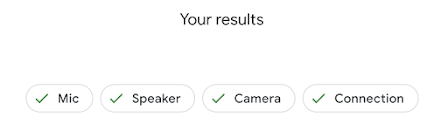
- You can click on each button for more information or change settings if needed.
- You will also have the opportunity to test again by clicking on the "Check agani: button


No comments:
Post a Comment